---
title: "How to deploy ASP.NET Blazor WebAssembly to GitHub Pages"
excerpt: "With ASP.NET Blazor WebAssembly you can create .NET applications that run completely inside of the browser. The output of a Blazor WASM project are all static files. You can deploy these applications to various static site hosts like GitHub Pages."
publishDate: "2020-08-31T00:00:00"
createDate: "2020-08-20T01:20:54.82"
updateDate: "2021-04-02T23:32:18.867"
category: "dotnet"
categoryName: ".NET"
tags: [".NET","dotnet","ASP.NET","ASPNET","Blazor","GitHub","CI/CD","Continuous Integration","Continuous Deployment"]
permalink: "/blog/dotnet/how-to-deploy-aspnet-blazor-webassembly-to-github-pages"
canonical: "/blog/dotnet/how-to-deploy-aspnet-blazor-webassembly-to-github-pages"
image: {"src":"/media/1zibxvmb/blazor-github-long.png","focalPoint":{"left":0.5,"top":0.5},"crops":[{"alias":"Banner","width":1120,"height":400,"coordinates":null}]}
imageAlt: "Title \"Deploying Blazor WebAssembly to GitHub Pages\" alongside Blazor and GitHub logo"
imageBackgroundColor: "#fff"
thumbnailImage: {"src":"/media/rivavmck/blazor-github-square.png","focalPoint":{"left":0.5,"top":0.5},"crops":[{"alias":"thumbnail","width":250,"height":250,"coordinates":null}]}
thumbnailImageAlt: "Blazor and GitHub logo"
metaTitle: "How to deploy ASP.NET Blazor WebAssembly to GitHub Pages"
metaDescription: "With ASP.NET Blazor WebAssembly you can create .NET applications that run completely inside of the browser. The output of a Blazor WASM project are all static files. You can deploy these applications to various static site hosts like GitHub Pages."
ogTitle: "How to deploy ASP.NET Blazor WebAssembly to GitHub Pages"
ogDescription: "With ASP.NET Blazor WebAssembly you can create .NET applications that run completely inside of the browser. The output of a Blazor WASM project are all static files. You can deploy these applications to various static site hosts like GitHub Pages."
ogImage: {"src":"/media/zl3ltmv4/blazor-github-social.png","focalPoint":{"left":0.5,"top":0.5},"crops":[{"alias":"OpenGraph","width":1200,"height":630,"coordinates":null}]}
ogImageAlt: "Title \"Deploying Blazor WebAssembly to GitHub Pages\" alongside Blazor and GitHub logo"
relatedPostKeys: ["3fa142faee1a488c91f507627e8059bb","685ea2dd839e410c8945ddf7f1e478e7","d6de8a5ab9844b34bc70fd22d76fde21"]
noIndex: false
noFollow: false
sitemapExclude: false
headHtml: |-
  <script type="application/ld+json">{
    "@context": "http://schema.org",
    "@type": "VideoObject",
    "name": "How to Deploy Blazor WebAssembly to GitHub Pages",
    "description": "With ASP.NET Blazor WebAssembly you can create .NET applications that run completely inside of the browser. The output of a Blazor WASM project are all static files. You can deploy these applications to various static site hosts like GitHub Pages. In this video you learn how to deploy Blazor WebAssembly to GitHub Pages.  For more content on .NET, Web Development, Azure, and more, check out https://swimburger.net. Follow me on Twitter @RealSwimburger: https://twitter.com/RealSwimburger  You can also learn how to deploy Blazor WASM to GitHub Pages by following the tutorial on swimburger.net: https://swimburger.net/blog/dotnet/how-to-deploy-aspnet-blazor-webassembly-to-github-pages  To learn how to deploy Blazor WASM and Azure Functions to Azure Static Web Apps, check out this tutorial on swimburger.net: https://swimburger.net/blog/dotnet/how-to-deploy-aspnet-blazor-webassembly-to-azure-static-web-apps  To learn more about GitHub Pages, its usage limits, and prohibited uses, check out this link: https://docs.github.com/en/free-pro-team@latest/github/working-with-github-pages/about-github-pages#usage-limits  Using Blazor WASM's PWA feature? Make sure to check this issue/solution out for integrity checking: https://swimburger.net/blog/dotnet/fix-blazor-webassembly-pwa-integrity-checks",
    "thumbnailUrl": "https://i.ytimg.com/vi/nNxII6jvPvQ/default.jpg",
    "uploadDate": "2020-12-23T16:00:12Z",
    "duration": "PT16M6S",
    "embedUrl": "https://www.youtube.com/embed/nNxII6jvPvQ"
  }</script>
source: {"nodeId":1320,"contentKey":"b01d783c18284f05b29774abcd096471","sortOrder":50}
---


With ASP.NET Blazor WebAssembly (WASM) you can create .NET web applications that run completely inside of the browser sandbox. The publish output of a Blazor WASM project are **all static files**. Now that you can run .NET web applications without server-side code, you can deploy these applications to various **static site hosts, such as Azure Static Web Apps and GitHub Pages**.


<p class="panel panel--info">Check out how to deploy Blazor WASM to these alternative static site hosts:</p>


-   [Azure Static Web Apps using GitHub](https://swimburger.net/blog/dotnet/how-to-deploy-aspnet-blazor-webassembly-to-azure-static-web-apps)
-   [Azure Static Web Apps using Azure DevOps (by Dave Brock)](https://daveabrock.com/2021/04/01/static-web-apps-azure-pipelines)
-   <a href="/blog/dotnet/how-to-deploy-blazor-webassembly-to-aws-amplify" title="How to deploy Blazor WebAssembly to AWS Amplify">AWS Amplify</a>
-   <a href="/blog/dotnet/how-to-deploy-blazor-webassembly-to-netlify" title="How to deploy Blazor WebAssembly to Netlify">Netlify</a>
-   <a href="/blog/dotnet/how-to-deploy-blazor-webassembly-to-cloudflare-pages" title="How to deploy Blazor WebAssembly to Cloudflare Pages">Cloudflare Pages</a>
-   <a href="/blog/dotnet/how-to-deploy-blazor-webassembly-to-digitalocean-app-platform" title="How to deploy Blazor WebAssembly to DigitalOcean App Platform">DigitalOcean App Platform</a>
-   <a href="/blog/dotnet/how-to-deploy-blazor-webassembly-to-heroku" title="How to deploy Blazor WebAssembly to Heroku">Heroku</a>[](https://swimburger.net/blog/dotnet/how-to-deploy-aspnet-blazor-webassembly-to-github-pages)<a href="/blog/dotnet/how-to-deploy-blazor-webassembly-to-aws-amplify" title="How to deploy Blazor WebAssembly to AWS Amplify"></a>
-   [Firebase Hosting](https://swimburger.net/blog/dotnet/how-to-deploy-blazor-webassembly-to-firebase-hosting)


**If you prefer video content, you can learn how to manually deploy Blazor WASM to GitHub Pages and how to automate it using GitHub Actions on this YouTube video:**


<div class='embed-container'><iframe src='https://www.youtube.com/embed/nNxII6jvPvQ' allowfullscreen title="YouTube video player" loading="lazy"></iframe></div>

This walkthrough will show you how to deploy Blazor WASM to GitHub Pages using GitHub Actions. GitHub pages provides you with free hosting for static websites.

This how-to will walk you through these high-level steps:

<ol style="margin-bottom: 30px;">
<li>Create Blazor WebAssembly project</li>
<li>Commit the project to a Git repository</li>
<li>Create a new GitHub project and push the Git repository to GitHub</li>
<li>Create a GitHub Actions Workflow</li>
<li>Run GitHub Actions Workflow</li>
</ol>


**Prerequisites**:


-   .NET Core 3.1 or up
-   Git
-   GitHub account


<p class="panel panel--info"><strong>You can refer to the code used throughout this walkthrough in <a rel="noopener" href="https://github.com/Swimburger/BlazorGitHubPagesDemo" target="_blank">this GitHub repository</a>.</strong></p>


## Create ASP.NET Core Blazor WebAssembly project {#create-aspnet-core-blazor-webassembly-project}

Run the following commands to create a new Blazor WASM project:

<pre style="color:#d1d1d1;background:#000000;"><span style="color:#e66170; font-weight:bold; ">mkdir</span> BlazorGitHubPagesDemo&#10;<span style="color:#e66170; font-weight:bold; ">cd</span> BlazorGitHubPagesDemo&#10;dotnet new blazorwasm&#10;</pre>


To give your application a try, run `dotnet run` and browse to the URL in the output (probably [https://localhost:5001](https://localhost:5001)):


<pre style="color:#d1d1d1;background:#000000;">dotnet run&#10;<span style="color:#9999a9; "># info: Microsoft.Hosting.Lifetime[0]</span>&#10;<span style="color:#9999a9; ">#       Now listening on: </span><span style="color:#6070ec; ">https://localhost:5001</span>&#10;<span style="color:#9999a9; "># info: Microsoft.Hosting.Lifetime[0]</span>&#10;<span style="color:#9999a9; ">#       Now listening on: </span><span style="color:#6070ec; ">http://localhost:5000</span>&#10;<span style="color:#9999a9; "># info: Microsoft.Hosting.Lifetime[0]</span>&#10;<span style="color:#9999a9; ">#       Application started. Press Ctrl+C to shut down.</span>&#10;<span style="color:#9999a9; "># info: Microsoft.Hosting.Lifetime[0]</span>&#10;<span style="color:#9999a9; ">#       Hosting environment: Development</span>&#10;<span style="color:#9999a9; "># info: Microsoft.Hosting.Lifetime[0]</span>&#10;<span style="color:#9999a9; ">#       Content root path: C:\Users\niels\source\repos\BlazorGitHubPagesDemo</span>&#10;</pre>

Optional: You can use the `dotnet publish` command to publish the project and verify the output:

<pre style="color:#d1d1d1;background:#000000;">dotnet publish <span style="color:#d2cd86; ">-</span>c Release&#10;<span style="color:#9999a9; "># Microsoft (R) Build Engine version 16.7.0+b89cb5fde for .NET</span>&#10;<span style="color:#9999a9; "># Copyright (C) Microsoft Corporation. All rights reserved.</span>&#10;<span style="color:#9999a9; "># </span>&#10;<span style="color:#9999a9; ">#   Determining projects to restore...</span>&#10;<span style="color:#9999a9; ">#   All projects are up-to-date for restore.</span>&#10;<span style="color:#9999a9; ">#   BlazorGitHubPagesDemo -&gt; C:\Users\niels\source\repos\BlazorGitHubPagesDemo\bin\Release\netstandard2.1\BlazorGitHubPagesDemo.dll</span>&#10;<span style="color:#9999a9; ">#   BlazorGitHubPagesDemo (Blazor output) -&gt; C:\Users\niels\source\repos\BlazorGitHubPagesDemo\bin\Release\netstandard2.1\wwwroot</span>&#10;<span style="color:#9999a9; ">#   BlazorGitHubPagesDemo -&gt; C:\Users\niels\source\repos\BlazorGitHubPagesDemo\bin\Release\netstandard2.1\publish\</span>&#10;</pre>


In the publish directory, you will find a web.config file and a wwwroot folder. The config file helps you host your application in IIS, but you don't need that file for static site hosts. **Everything you need will be inside of the wwwroot folder. The wwwroot folder contains the index.html, CSS, JS, and DLL files necessary to run the Blazor application**.


## Push Blazor project to GitHub {#push-blazor-project-to-github}

For this walkthrough, your application source code must be inside of a GitHub repository.<br>First, you need to create a local Git repository and commit your source code to the repository using these commands:

<pre style="color:#d1d1d1;background:#000000;"><span style="color:#9999a9; "># add the gitignore file tailored for dotnet applications, this will ignore bin/obj and many other non-source code files</span>&#10;dotnet new gitignore&#10;<span style="color:#9999a9; "># create the git repository</span>&#10;git init&#10;<span style="color:#9999a9; "># track all files that are not ignore by .gitignore</span>&#10;git add <span style="color:#d2cd86; ">-</span><span style="color:#d2cd86; ">-</span>all&#10;<span style="color:#9999a9; "># commit all changes to the repository</span>&#10;git commit <span style="color:#d2cd86; ">-</span><span style="color:#e66170; font-weight:bold; ">m </span><span style="color:#02d045; ">"</span><span style="color:#00c4c4; ">Initial commit</span><span style="color:#02d045; ">"</span>&#10;</pre>


Create a new GitHub repository (<a rel="noopener" href="https://docs.github.com/en/github/getting-started-with-github/create-a-repo" target="_blank">instructions</a>) and copy the commands to "push an existing repository from the command line" from the empty GitHub repository page, here's what it should looks like but with a different URL:


<pre style="color:#d1d1d1;background:#000000;">git remote add origin https<span style="color:#d2cd86; ">:</span><span style="color:#d2cd86; ">/</span><span style="color:#d2cd86; ">/</span>github.com<span style="color:#d2cd86; ">/</span>Swimburger<span style="color:#d2cd86; ">/</span>BlazorGitHubPagesDemo.git&#10;git push <span style="color:#d2cd86; ">-</span>u origin master&#10;</pre>


## Create a GitHub Actions Workflow {#create-a-github-actions-workflow}


Now that your source code has been pushed to GitHub, you'll need to create a **GitHub Actions Workflow** that builds your project, commits the output and pushes the code to a separate GitHub branch. GitHub Pages will use this separate branch (usually named '**gh-pages**') as the static files for your site.


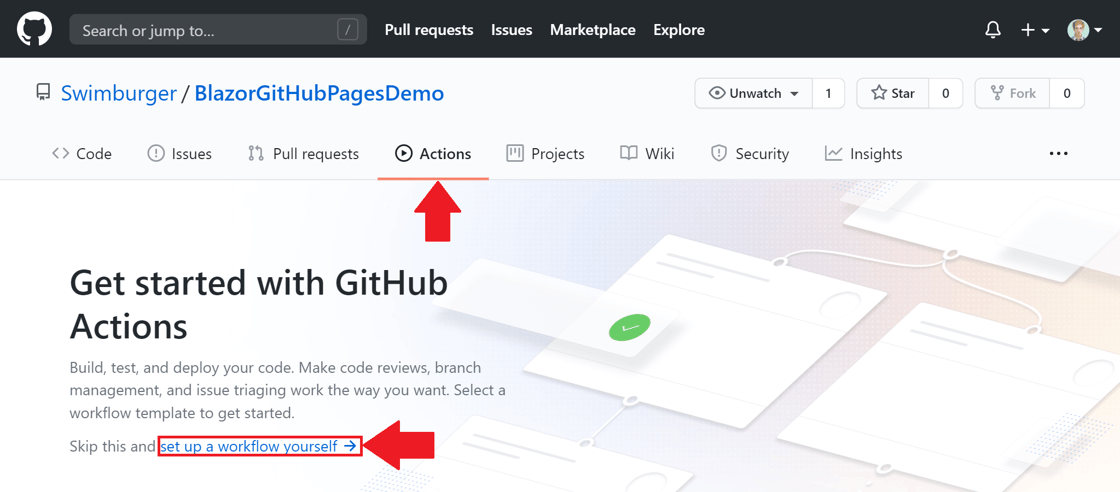
Start by navigating to the **Actions** tab in your GitHub repository and click on the link '**set up a workflow yourself**':


<picture>
  <img src="https://swimburger.net/cdn-cgi/image/format=auto,quality=90,width=1120/media/d4sniipo/2-github-repository-actions-page.png" srcset="https://swimburger.net/cdn-cgi/image/format=auto,quality=90,width=430/media/d4sniipo/2-github-repository-actions-page.png 430w, https://swimburger.net/cdn-cgi/image/format=auto,quality=90,width=645/media/d4sniipo/2-github-repository-actions-page.png 645w, https://swimburger.net/cdn-cgi/image/format=auto,quality=90,width=718/media/d4sniipo/2-github-repository-actions-page.png 718w, https://swimburger.net/cdn-cgi/image/format=auto,quality=90,width=860/media/d4sniipo/2-github-repository-actions-page.png 860w, https://swimburger.net/cdn-cgi/image/format=auto,quality=90,width=1077/media/d4sniipo/2-github-repository-actions-page.png 1077w, https://swimburger.net/cdn-cgi/image/format=auto,quality=90,width=1120/media/d4sniipo/2-github-repository-actions-page.png 1120w, https://swimburger.net/cdn-cgi/image/format=auto,quality=90,width=1436/media/d4sniipo/2-github-repository-actions-page.png 1436w, https://swimburger.net/cdn-cgi/image/format=auto,quality=90,width=1680/media/d4sniipo/2-github-repository-actions-page.png 1680w" sizes="(max-width: 480px) 430px, (max-width: 768px) 718px, 1120px" width="1120" height="492" alt="Screenshot of GitHub repository with 'Actions' tab selected and a highlighted link 'set up a workflow yourself'" loading="lazy" decoding="async">
</picture>

Clicking that link will take you to the 'Edit new file' page. The file that you are about to create will instruct GitHub Actions how to build and deploy your project using YAML.<br>These Workflow YAML files will be stored under the folder '.github/workflows/'.

<p class="panel panel--info">Check out <a rel="noopener" href="https://docs.github.com/en/actions" target="_blank">the GitHub Actions documentation to learn more about creating workflows</a>.</p>

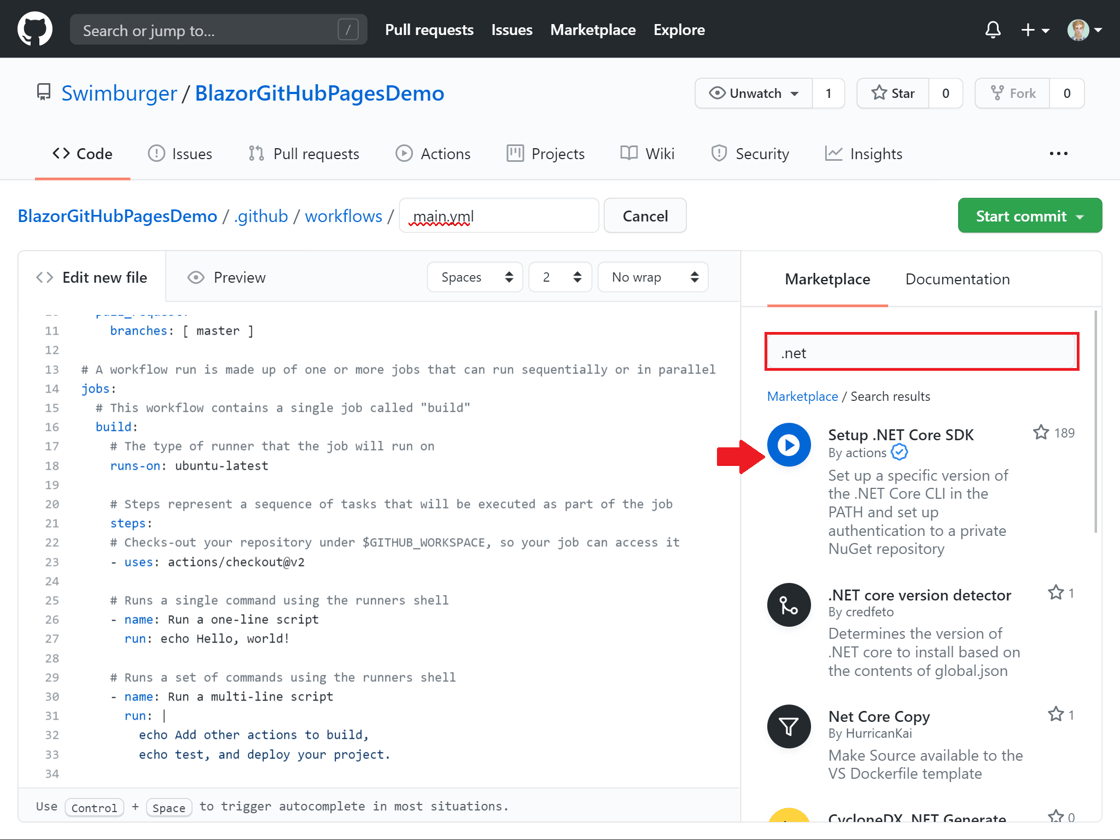
On the right side you can browse the GitHub Actions marketplace and read documentation. The GitHub Actions marketplace already has a ton of pre-made actions so you don't have reinvent the wheel. For example, when you search for '.NET', the first result is 'Setup .NET Core SDK' which is an action provided by the GitHub organization. You'll be using this action in the next steps.
<picture>
  <img src="https://swimburger.net/cdn-cgi/image/format=auto,quality=90,width=1120/media/debfp5ti/4-github-repository-actions-add-net-core-sdk.png" srcset="https://swimburger.net/cdn-cgi/image/format=auto,quality=90,width=430/media/debfp5ti/4-github-repository-actions-add-net-core-sdk.png 430w, https://swimburger.net/cdn-cgi/image/format=auto,quality=90,width=645/media/debfp5ti/4-github-repository-actions-add-net-core-sdk.png 645w, https://swimburger.net/cdn-cgi/image/format=auto,quality=90,width=718/media/debfp5ti/4-github-repository-actions-add-net-core-sdk.png 718w, https://swimburger.net/cdn-cgi/image/format=auto,quality=90,width=860/media/debfp5ti/4-github-repository-actions-add-net-core-sdk.png 860w, https://swimburger.net/cdn-cgi/image/format=auto,quality=90,width=1077/media/debfp5ti/4-github-repository-actions-add-net-core-sdk.png 1077w, https://swimburger.net/cdn-cgi/image/format=auto,quality=90,width=1120/media/debfp5ti/4-github-repository-actions-add-net-core-sdk.png 1120w, https://swimburger.net/cdn-cgi/image/format=auto,quality=90,width=1436/media/debfp5ti/4-github-repository-actions-add-net-core-sdk.png 1436w, https://swimburger.net/cdn-cgi/image/format=auto,quality=90,width=1680/media/debfp5ti/4-github-repository-actions-add-net-core-sdk.png 1680w" sizes="(max-width: 480px) 430px, (max-width: 768px) 718px, 1120px" width="1120" height="840" alt="Screenshot of the GitHub Actions Workflow editor while searching for .NET in the marketplace pane" loading="lazy" decoding="async">
</picture>

Delete all code in this file so you can build your workflow from scratch.<br>The first line you'll need to add is the 'name' property. Give a meaningful name for your workflow:

<pre style="color:#000000;background:#ffffff;">name: Deploy to GitHub Pages&#10;</pre>

Next, you need to specify what will trigger the workflow. Add the following lines:

<pre style="color:#000000;background:#ffffff;"># Run workflow on every push to the master branch&#10;on:&#10;  push:&#10;    branches: [ master ]&#10;</pre>

These lines instruct GitHub Actions to run your workflow on every `git push` to the master-branch.


Now, you must configure your jobs, and which image each job will run on. Give your job a meaningful name following the kebab-case naming convention such as `deploy-to-github-pages`.<br>Configure your job to run on Ubuntu by adding `runs-on: ubuntu-latest`, and add an empty steps property.


<pre style="color:#000000;background:#ffffff;">jobs:&#10;  deploy-to-github-pages:&#10;    # use ubuntu-latest image to run steps on&#10;    runs-on: ubuntu-latest&#10;    steps:&#10;</pre>

The first step to add will be using the `checkout` action provided by GitHub. Without passing any parameters to the action, the `checkout` action will by default perform a `git checkout` against your master branch.

<pre style="color:#000000;background:#ffffff;">    # uses GitHub's checkout action to checkout code form the master branch&#10;    - uses: actions/checkout@v2&#10;</pre>

Once this action is performed, your code will be available to work with.

To build and publish the Blazor application, you'll also need to have the .NET Core SDK which doesn't come pre-installed with the Ubuntu machine. Using the `setup-dotnet` action provided by GitHub, you can easily install the .NET SDK on top of the Ubuntu machine:

<pre style="color:#000000;background:#ffffff;">    # sets up .NET Core SDK 3.1&#10;    - name: Setup .NET Core SDK&#10;      uses: actions/setup-dotnet@v1&#10;      with:&#10;        dotnet-version: 3.1&#10;</pre>

By passing in the `dotnet-version` parameter, you can specify which version of the .NET SDK you want to install.

<p class="panel panel--info">Note: use <code>dotnet --info</code> on your machine to see which version of the .NET SDK you're currently using.</p>

Now that the .NET Core SDK is installed, you can run the `dotnet publish` command to build and deploy your Blazor app. Using the `run` property, you can specify which commands to execute. Add a `run` property with value of your `dotnet publish` command.

<pre style="color:#000000;background:#ffffff;">    # publishes Blazor project to the release-folder&#10;    - name: Publish .NET Core Project&#10;      run: dotnet publish BlazorGitHubPagesDemo.csproj -c Release -o release --nologo&#10;</pre>


-   Using the `-c` (--configuration) argument, you can tell to build the project using the `Release` configuration.
-   Using the `-o` (--output) argument, you can specify where to put the published files. **Tell dotnet to publish the project to the `release` folder**.
-   The `--nologo` argument will prevent some unnecessary lines from being output to the console.


Now that you have successfully published the project to the 'release' folder, you can use another very helpful action from the <a rel="noopener" href="https://github.com/marketplace/actions/deploy-to-github-pages" target="_blank">marketplace called 'github-pages-deploy-action'</a>. This action will make it easy to publish your static files to GitHub Pages.


<pre style="color:#000000;background:#ffffff;">    - name: Commit wwwroot to GitHub Pages&#10;      uses: JamesIves/github-pages-deploy-action@3.7.1&#10;      with:&#10;        GITHUB_TOKEN: ${{ secrets.GITHUB_TOKEN }}&#10;        BRANCH: gh-pages&#10;        FOLDER: release/wwwroot&#10;</pre>


- The <code><strong>${{ secrets.GITHUB_TOKEN }}</strong></code> resolves to a <strong>token used for securely communicating with GitHub on your behalf</strong>. This token is available by default in all workflows and permissions are limited to the repository that contains your workflow. <strong>By passing it into the <code>GITHUB_TOKEN</code> property, the action can use it to create and push to the 'gh-pages' branch.</strong>
- The <code>BRANCH</code> property will configure which branch the action will create and push to. <strong>Set this to 'gh-pages'.</strong>
- The <code>FOLDER</code> property will configure which folder and files will be pushed to the 'gh-pages' branch. <strong>Set this to 'release/wwwroot'.</strong> This is where the project will be published, and all the static resources are in the wwwroot-subfolder.


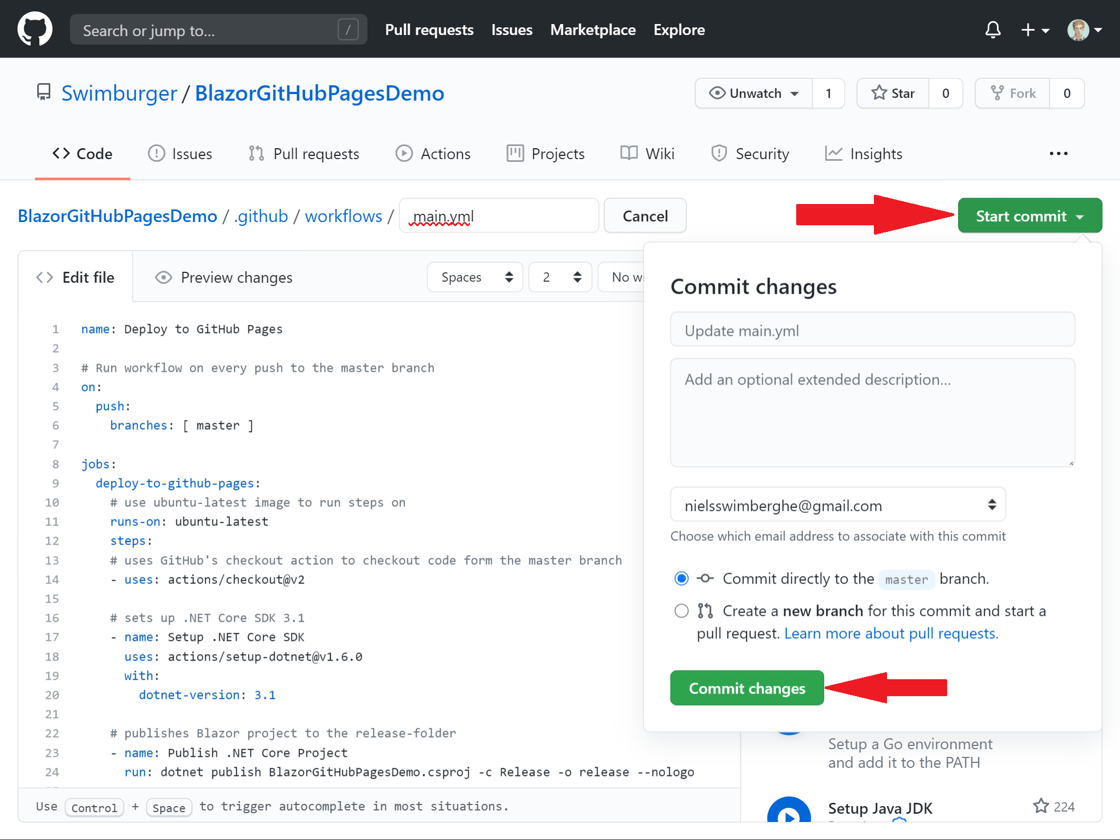
Now that all steps are in place, commit the file:
<picture>
  <img src="https://swimburger.net/cdn-cgi/image/format=auto,quality=90,width=1120/media/vxllchwp/5-github-repository-actions-commit-workflow.png" srcset="https://swimburger.net/cdn-cgi/image/format=auto,quality=90,width=430/media/vxllchwp/5-github-repository-actions-commit-workflow.png 430w, https://swimburger.net/cdn-cgi/image/format=auto,quality=90,width=645/media/vxllchwp/5-github-repository-actions-commit-workflow.png 645w, https://swimburger.net/cdn-cgi/image/format=auto,quality=90,width=718/media/vxllchwp/5-github-repository-actions-commit-workflow.png 718w, https://swimburger.net/cdn-cgi/image/format=auto,quality=90,width=860/media/vxllchwp/5-github-repository-actions-commit-workflow.png 860w, https://swimburger.net/cdn-cgi/image/format=auto,quality=90,width=1077/media/vxllchwp/5-github-repository-actions-commit-workflow.png 1077w, https://swimburger.net/cdn-cgi/image/format=auto,quality=90,width=1120/media/vxllchwp/5-github-repository-actions-commit-workflow.png 1120w, https://swimburger.net/cdn-cgi/image/format=auto,quality=90,width=1436/media/vxllchwp/5-github-repository-actions-commit-workflow.png 1436w, https://swimburger.net/cdn-cgi/image/format=auto,quality=90,width=1680/media/vxllchwp/5-github-repository-actions-commit-workflow.png 1680w" sizes="(max-width: 480px) 430px, (max-width: 768px) 718px, 1120px" width="1120" height="840" alt="Screenshot of committing GitHub Action Workflow file" loading="lazy" decoding="async">
</picture>

Navigate back to the GitHub Actions overview page by pressing the "Actions" tab.

<picture>
  <img src="https://swimburger.net/cdn-cgi/image/format=auto,quality=90,width=1120/media/ya5bnaux/6-github-repository-actions-workflow-result-overview.png" srcset="https://swimburger.net/cdn-cgi/image/format=auto,quality=90,width=430/media/ya5bnaux/6-github-repository-actions-workflow-result-overview.png 430w, https://swimburger.net/cdn-cgi/image/format=auto,quality=90,width=645/media/ya5bnaux/6-github-repository-actions-workflow-result-overview.png 645w, https://swimburger.net/cdn-cgi/image/format=auto,quality=90,width=718/media/ya5bnaux/6-github-repository-actions-workflow-result-overview.png 718w, https://swimburger.net/cdn-cgi/image/format=auto,quality=90,width=860/media/ya5bnaux/6-github-repository-actions-workflow-result-overview.png 860w, https://swimburger.net/cdn-cgi/image/format=auto,quality=90,width=1077/media/ya5bnaux/6-github-repository-actions-workflow-result-overview.png 1077w, https://swimburger.net/cdn-cgi/image/format=auto,quality=90,width=1120/media/ya5bnaux/6-github-repository-actions-workflow-result-overview.png 1120w, https://swimburger.net/cdn-cgi/image/format=auto,quality=90,width=1436/media/ya5bnaux/6-github-repository-actions-workflow-result-overview.png 1436w, https://swimburger.net/cdn-cgi/image/format=auto,quality=90,width=1680/media/ya5bnaux/6-github-repository-actions-workflow-result-overview.png 1680w" sizes="(max-width: 480px) 430px, (max-width: 768px) 718px, 1120px" width="1120" height="505" alt="Screenshot of GitHub Actions landing page with workflow run" loading="lazy" decoding="async">
</picture>

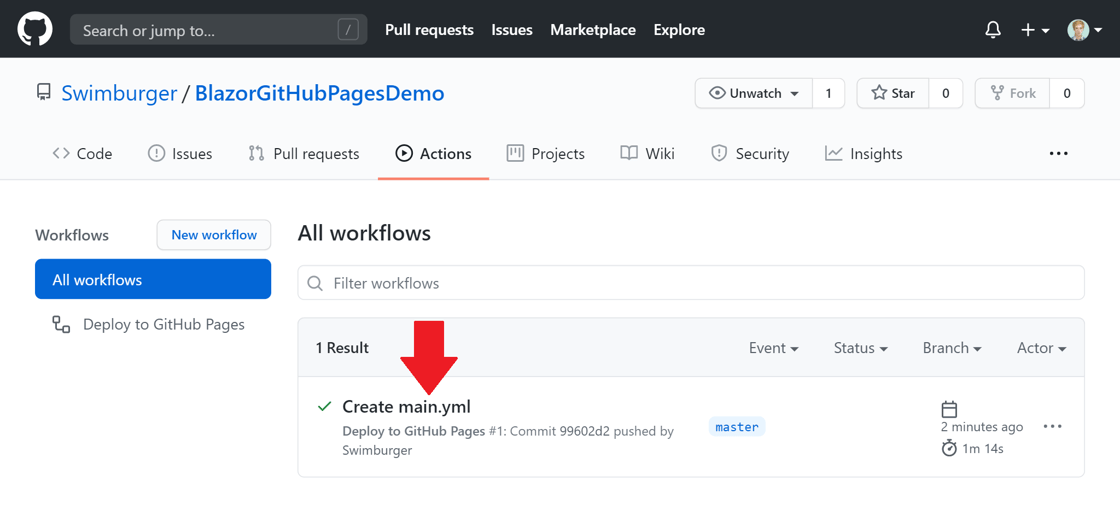
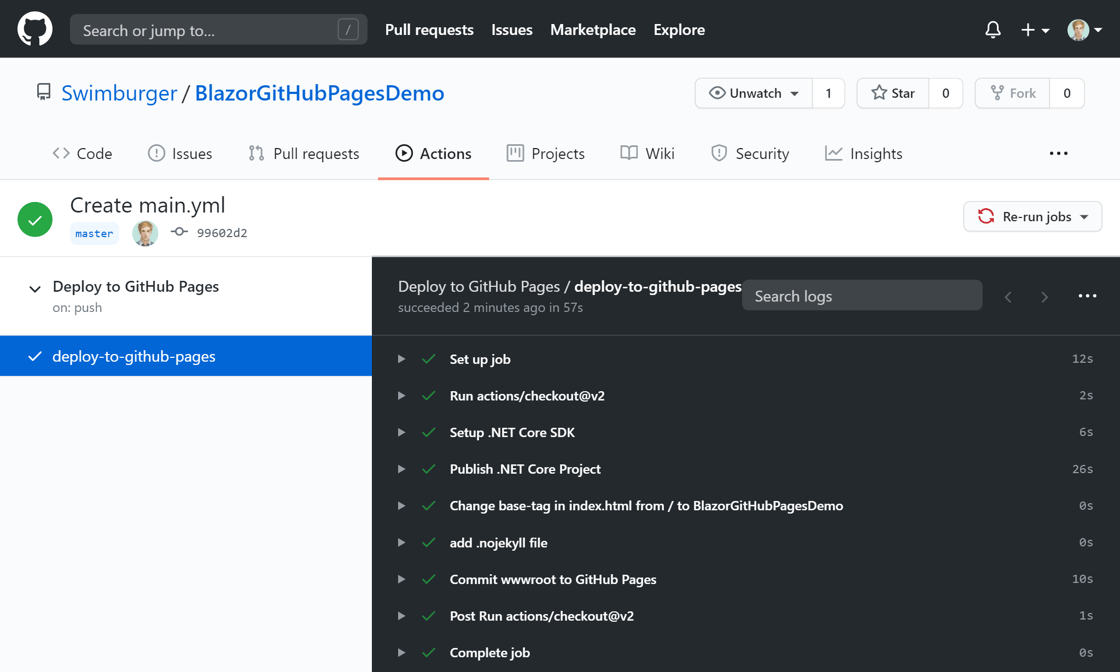
You can now find your GitHub Action Workflow and the workflow runs on this page. Click on your first run which was automatically created when you committed the workflow, and watch it publish your project to the 'gh-pages' branch:

<picture>
  <img src="https://swimburger.net/cdn-cgi/image/format=auto,quality=90,width=1120/media/hnwjlcv5/7-github-repository-actions-workflow-run-results.png" srcset="https://swimburger.net/cdn-cgi/image/format=auto,quality=90,width=430/media/hnwjlcv5/7-github-repository-actions-workflow-run-results.png 430w, https://swimburger.net/cdn-cgi/image/format=auto,quality=90,width=645/media/hnwjlcv5/7-github-repository-actions-workflow-run-results.png 645w, https://swimburger.net/cdn-cgi/image/format=auto,quality=90,width=718/media/hnwjlcv5/7-github-repository-actions-workflow-run-results.png 718w, https://swimburger.net/cdn-cgi/image/format=auto,quality=90,width=860/media/hnwjlcv5/7-github-repository-actions-workflow-run-results.png 860w, https://swimburger.net/cdn-cgi/image/format=auto,quality=90,width=1077/media/hnwjlcv5/7-github-repository-actions-workflow-run-results.png 1077w, https://swimburger.net/cdn-cgi/image/format=auto,quality=90,width=1120/media/hnwjlcv5/7-github-repository-actions-workflow-run-results.png 1120w, https://swimburger.net/cdn-cgi/image/format=auto,quality=90,width=1436/media/hnwjlcv5/7-github-repository-actions-workflow-run-results.png 1436w, https://swimburger.net/cdn-cgi/image/format=auto,quality=90,width=1680/media/hnwjlcv5/7-github-repository-actions-workflow-run-results.png 1680w" sizes="(max-width: 480px) 430px, (max-width: 768px) 718px, 1120px" width="1120" height="672" alt="Screenshot of GitHub Actions Workflow run output" loading="lazy" decoding="async">
</picture>

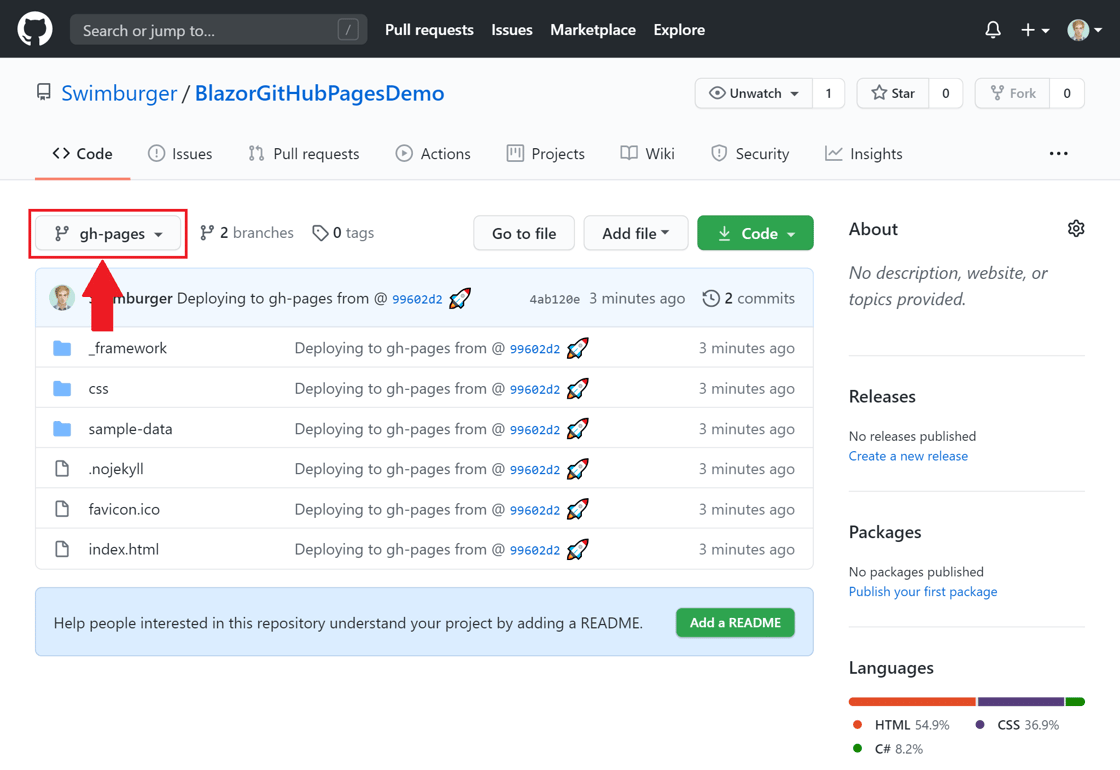
Once completed, you can see the result by navigating to the 'gh-pages' branch in your repository:

<picture>
  <img src="https://swimburger.net/cdn-cgi/image/format=auto,quality=90,width=1120/media/ivwbmlvu/8-github-repository-gh-pages-branch.png" srcset="https://swimburger.net/cdn-cgi/image/format=auto,quality=90,width=430/media/ivwbmlvu/8-github-repository-gh-pages-branch.png 430w, https://swimburger.net/cdn-cgi/image/format=auto,quality=90,width=645/media/ivwbmlvu/8-github-repository-gh-pages-branch.png 645w, https://swimburger.net/cdn-cgi/image/format=auto,quality=90,width=718/media/ivwbmlvu/8-github-repository-gh-pages-branch.png 718w, https://swimburger.net/cdn-cgi/image/format=auto,quality=90,width=860/media/ivwbmlvu/8-github-repository-gh-pages-branch.png 860w, https://swimburger.net/cdn-cgi/image/format=auto,quality=90,width=1077/media/ivwbmlvu/8-github-repository-gh-pages-branch.png 1077w, https://swimburger.net/cdn-cgi/image/format=auto,quality=90,width=1120/media/ivwbmlvu/8-github-repository-gh-pages-branch.png 1120w, https://swimburger.net/cdn-cgi/image/format=auto,quality=90,width=1436/media/ivwbmlvu/8-github-repository-gh-pages-branch.png 1436w, https://swimburger.net/cdn-cgi/image/format=auto,quality=90,width=1680/media/ivwbmlvu/8-github-repository-gh-pages-branch.png 1680w" sizes="(max-width: 480px) 430px, (max-width: 768px) 718px, 1120px" width="1120" height="770" alt="Screenshot of GitHub repository gh-pages branch" loading="lazy" decoding="async">
</picture>


The last step is to **enable GitHub pages in the repository settings**. Navigate to the settings by clicking on the **'Settings' tab**. Scroll down to the '**GitHub Pages**' section and **select the 'gh-pages' branch in the 'Source' dropdown**.


<picture>
  <img src="https://swimburger.net/cdn-cgi/image/format=auto,quality=90,width=1120/media/4deldpqu/9-github-repository-configure-github-pages.png" srcset="https://swimburger.net/cdn-cgi/image/format=auto,quality=90,width=430/media/4deldpqu/9-github-repository-configure-github-pages.png 430w, https://swimburger.net/cdn-cgi/image/format=auto,quality=90,width=645/media/4deldpqu/9-github-repository-configure-github-pages.png 645w, https://swimburger.net/cdn-cgi/image/format=auto,quality=90,width=718/media/4deldpqu/9-github-repository-configure-github-pages.png 718w, https://swimburger.net/cdn-cgi/image/format=auto,quality=90,width=860/media/4deldpqu/9-github-repository-configure-github-pages.png 860w, https://swimburger.net/cdn-cgi/image/format=auto,quality=90,width=1077/media/4deldpqu/9-github-repository-configure-github-pages.png 1077w, https://swimburger.net/cdn-cgi/image/format=auto,quality=90,width=1120/media/4deldpqu/9-github-repository-configure-github-pages.png 1120w, https://swimburger.net/cdn-cgi/image/format=auto,quality=90,width=1436/media/4deldpqu/9-github-repository-configure-github-pages.png 1436w" sizes="(max-width: 480px) 430px, (max-width: 768px) 718px, 1120px" width="1120" height="526" alt="Screenshot of the 'GitHub Pages' section in the GitHub Repository Settings" loading="lazy" decoding="async">
</picture>


After a few seconds to a minute, the GitHub Pages site should be available at **'\[YOUR\_USERNAME\].github.io/\[YOUR\_REPOSITORY\_NAME\]'**.<br>But you'll notice that your blazor application isn't working as expected. You'll be greeted with this:


<picture>
  <img src="https://swimburger.net/cdn-cgi/image/format=auto,quality=90,width=615/media/stvhzcu2/10-broken-blazor-site.png" srcset="https://swimburger.net/cdn-cgi/image/format=auto,quality=90,width=430/media/stvhzcu2/10-broken-blazor-site.png 430w, https://swimburger.net/cdn-cgi/image/format=auto,quality=90,width=615/media/stvhzcu2/10-broken-blazor-site.png 615w" sizes="(max-width: 480px) 430px, (max-width: 768px) 615px, 615px" width="615" height="125" alt="Screenshot of broken Blazor application" loading="lazy" decoding="async">
</picture>

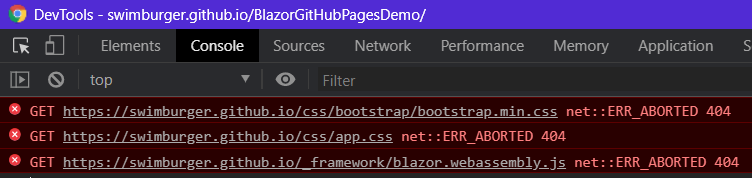
If you look at the console output, you'll find 404 errors for multiple files:

<picture>
  <img src="https://swimburger.net/cdn-cgi/image/format=auto,quality=90,width=752/media/1hwgwc2u/11-broken-blazor-site-console-output.png" srcset="https://swimburger.net/cdn-cgi/image/format=auto,quality=90,width=430/media/1hwgwc2u/11-broken-blazor-site-console-output.png 430w, https://swimburger.net/cdn-cgi/image/format=auto,quality=90,width=645/media/1hwgwc2u/11-broken-blazor-site-console-output.png 645w, https://swimburger.net/cdn-cgi/image/format=auto,quality=90,width=752/media/1hwgwc2u/11-broken-blazor-site-console-output.png 752w" sizes="(max-width: 480px) 430px, (max-width: 768px) 752px, 752px" width="752" height="178" alt="Broken Blazor Application Console with 404 errors" loading="lazy" decoding="async">
</picture>


The problem is that the application is trying to fetch the resources at the root of the website (**username.github.io/**), not the GitHub Pages subfolder (**username.github.io/repo\_name**).<br>This is because of the **base-tag in the HTML head** which tells the browser to **resolve files relatively to the root of the server address**:


<pre style="color:#000000;background:#ffffff;"><span style="color:#004a43; ">&lt;!DOCTYPE html&gt;</span>&#10;<span style="color:#a65700; ">&lt;</span><span style="color:#800000; font-weight:bold; ">html</span><span style="color:#a65700; ">&gt;</span>&#10;<span style="color:#a65700; ">&lt;</span><span style="color:#800000; font-weight:bold; ">head</span><span style="color:#a65700; ">&gt;</span>&#10;    ...&#10;    <span style="color:#a65700; ">&lt;</span><span style="color:#800000; font-weight:bold; ">base</span><span style="color:#274796; "> </span><span style="color:#074726; ">href</span><span style="color:#808030; ">=</span><span style="color:#0000e6; ">"/"</span><span style="color:#274796; "> </span><span style="color:#a65700; ">/&gt;</span>&#10;    <span style="color:#a65700; ">&lt;</span><span style="color:#800000; font-weight:bold; ">link</span><span style="color:#274796; "> </span><span style="color:#074726; ">href</span><span style="color:#808030; ">=</span><span style="color:#0000e6; ">"css/bootstrap/bootstrap.min.css"</span><span style="color:#274796; "> </span><span style="color:#074726; ">rel</span><span style="color:#808030; ">=</span><span style="color:#0000e6; ">"stylesheet"</span><span style="color:#274796; "> </span><span style="color:#a65700; ">/&gt;</span>&#10;    <span style="color:#a65700; ">&lt;</span><span style="color:#800000; font-weight:bold; ">link</span><span style="color:#274796; "> </span><span style="color:#074726; ">href</span><span style="color:#808030; ">=</span><span style="color:#0000e6; ">"css/app.css"</span><span style="color:#274796; "> </span><span style="color:#074726; ">rel</span><span style="color:#808030; ">=</span><span style="color:#0000e6; ">"stylesheet"</span><span style="color:#274796; "> </span><span style="color:#a65700; ">/&gt;</span>&#10;<span style="color:#a65700; ">&lt;/</span><span style="color:#800000; font-weight:bold; ">head</span><span style="color:#a65700; ">&gt;</span>&#10;<span style="color:#a65700; ">&lt;</span><span style="color:#800000; font-weight:bold; ">body</span><span style="color:#a65700; ">&gt;</span>&#10;    ...&#10;    <span style="color:#a65700; ">&lt;</span><span style="color:#800000; font-weight:bold; ">script</span><span style="color:#274796; "> </span><span style="color:#074726; ">src</span><span style="color:#808030; ">=</span><span style="color:#0000e6; ">"_framework/blazor.webassembly.js"</span><span style="color:#a65700; ">&gt;</span><span style="color:#a65700; ">&lt;/</span><span style="color:#800000; font-weight:bold; ">script</span><span style="color:#a65700; ">&gt;</span>&#10;<span style="color:#a65700; ">&lt;/</span><span style="color:#800000; font-weight:bold; ">body</span><span style="color:#a65700; ">&gt;</span>&#10;<span style="color:#a65700; ">&lt;/</span><span style="color:#800000; font-weight:bold; ">html</span><span style="color:#a65700; ">&gt;</span>&#10;</pre>


To solve this, you need to update the base-tag to `<base href="/your_repo_name/" />`.<br>**If you were to do this directly inside of the master-branch, that would break the application for local development**. So instead of that, you can run a **command inside of your workflow to automatically replace the base tag**.<br>Navigate to the workflow YAML file in the master-branch and add the following section right after the `dotnet publish` action:


<pre style="color:#000000;background:#ffffff;">    # changes the base<span style="color:#808030; ">-</span>tag in index<span style="color:#008c00; ">.</span>html from <span style="color:#800000; ">'</span><span style="color:#0000e6; ">/</span><span style="color:#800000; ">'</span> to <span style="color:#800000; ">'</span><span style="color:#0000e6; ">BlazorGitHubPagesDemo</span><span style="color:#800000; ">'</span> to match GitHub Pages repository subdirectory&#10;    <span style="color:#808030; ">-</span> name<span style="color:#808030; ">:</span> Change base<span style="color:#808030; ">-</span>tag in index<span style="color:#008c00; ">.</span>html from <span style="color:#808030; ">/</span> to BlazorGitHubPagesDemo&#10;      run<span style="color:#808030; ">:</span> sed <span style="color:#808030; ">-</span>i <span style="color:#800000; ">'</span><span style="color:#0000e6; ">s/&lt;base href="\/" \/&gt;/&lt;base href="\/BlazorGitHubPagesDemo\/" \/&gt;/g</span><span style="color:#800000; ">'</span> release<span style="color:#808030; ">/</span>wwwroot<span style="color:#808030; ">/</span>index<span style="color:#008c00; ">.</span>html&#10;</pre>


Make sure to replace 'BlazorGitHubPagesDemo' with your repository name. This command will update the file in place, **replacing the default base-tag with the subfolder-version**. Commit this change and verify the result.<br>The favicon.ico and CSS-files are now loading successfully, but unfortunately as you solved one issue, another popped up:


<picture>
  <img src="https://swimburger.net/cdn-cgi/image/format=auto,quality=90,width=988/media/s5ahh1b2/12-broken-blazor-site-console-output-post-base-fix.png" srcset="https://swimburger.net/cdn-cgi/image/format=auto,quality=90,width=430/media/s5ahh1b2/12-broken-blazor-site-console-output-post-base-fix.png 430w, https://swimburger.net/cdn-cgi/image/format=auto,quality=90,width=645/media/s5ahh1b2/12-broken-blazor-site-console-output-post-base-fix.png 645w, https://swimburger.net/cdn-cgi/image/format=auto,quality=90,width=718/media/s5ahh1b2/12-broken-blazor-site-console-output-post-base-fix.png 718w, https://swimburger.net/cdn-cgi/image/format=auto,quality=90,width=860/media/s5ahh1b2/12-broken-blazor-site-console-output-post-base-fix.png 860w, https://swimburger.net/cdn-cgi/image/format=auto,quality=90,width=988/media/s5ahh1b2/12-broken-blazor-site-console-output-post-base-fix.png 988w" sizes="(max-width: 480px) 430px, (max-width: 768px) 718px, 988px" width="988" height="150" alt="Screenshot of the broken Blazor app failing to load JavaScript" loading="lazy" decoding="async">
</picture>


GitHub Pages by default expects you to use the Jekyll static site generator. As part of this default, GitHub pages will **not serve any files or folder starting with and <span style="text-decoration: underline;">underscore</span>**. As it happens, Blazor does use underscores in the '**\_framework**' folder. Without these files, the Blazor application will not function.<br>Luckily, **GitHub Pages will turn off this behavior** if you add an empty '**.nojekyll**' file at the root of the 'gh-pages' branch.<br>You could create an empty '.nojekyll' file in the 'wwwroot' folder in the master branch or you could add another command to the workflow to create this file for you. This how-to will do the latter.<br>Navigate back to the workflow YAML file and add the following step before the GitHub Pages deploy step:


<pre style="color:#000000;background:#ffffff;">    # add <span style="color:#808030; ">.</span>nojekyll file to tell GitHub pages to not treat this as a Jekyll project<span style="color:#808030; ">.</span> <span style="color:#808030; ">(</span>Allow files and folders starting with an underscore<span style="color:#808030; ">)</span>&#10;    <span style="color:#808030; ">-</span> name<span style="color:#808030; ">:</span> Add <span style="color:#808030; ">.</span>nojekyll file&#10;      run<span style="color:#808030; ">:</span> touch release<span style="color:#808030; ">/</span>wwwroot<span style="color:#808030; ">/</span><span style="color:#808030; ">.</span>nojekyll&#10;</pre>

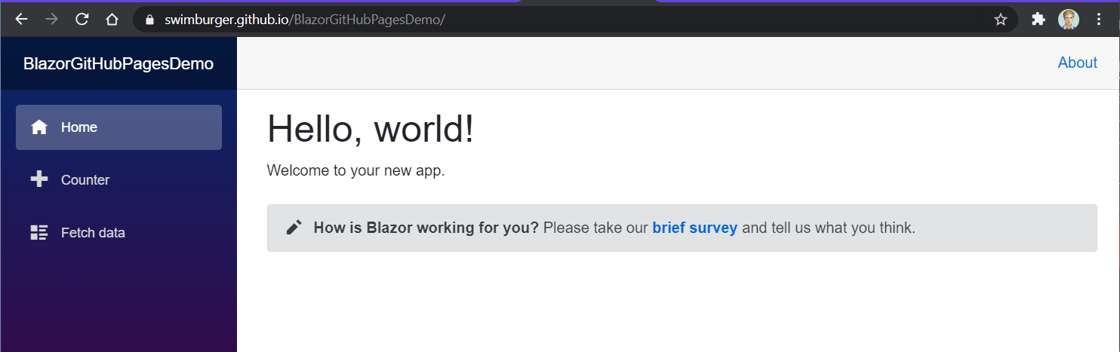
Commit your changes and once the workflow run finishes, your Blazor application is finally fully functional:
<picture>
  <img src="https://swimburger.net/cdn-cgi/image/format=auto,quality=90,width=1120/media/lxpheoi5/13-working-github-pages-blazor-site.png" srcset="https://swimburger.net/cdn-cgi/image/format=auto,quality=90,width=430/media/lxpheoi5/13-working-github-pages-blazor-site.png 430w, https://swimburger.net/cdn-cgi/image/format=auto,quality=90,width=645/media/lxpheoi5/13-working-github-pages-blazor-site.png 645w, https://swimburger.net/cdn-cgi/image/format=auto,quality=90,width=718/media/lxpheoi5/13-working-github-pages-blazor-site.png 718w, https://swimburger.net/cdn-cgi/image/format=auto,quality=90,width=860/media/lxpheoi5/13-working-github-pages-blazor-site.png 860w, https://swimburger.net/cdn-cgi/image/format=auto,quality=90,width=1077/media/lxpheoi5/13-working-github-pages-blazor-site.png 1077w, https://swimburger.net/cdn-cgi/image/format=auto,quality=90,width=1120/media/lxpheoi5/13-working-github-pages-blazor-site.png 1120w, https://swimburger.net/cdn-cgi/image/format=auto,quality=90,width=1436/media/lxpheoi5/13-working-github-pages-blazor-site.png 1436w" sizes="(max-width: 480px) 430px, (max-width: 768px) 718px, 1120px" width="1120" height="352" alt="Screenshot of working Blazor app on GitHub Pages" loading="lazy" decoding="async">
</picture>


<p class="panel panel--danger">If you're using the PWA feature in Blazor WebAssembly, you will also run into an integrity checking issue. Read this <a href="https://swimburger.net/blog/dotnet/fix-blazor-webassembly-pwa-integrity-checks">follow-up post on how to resolve that issue for GitHub Pages</a>.</p>


### Fixing 404 {#fixing-404}


By default, GitHub pages will show its GitHub branded 404 page. This may not be an issue for you, but in case it is, you have two options. 


<ol>
<li>Create your own <code>404.html</code> in the <code>wwwroot</code> folder and commit it to your repository. Once deployed, GitHub will automatically start using that file for any unknown URL's under your GitHub Pages site.</li>
<li>Alternatively, as part of your GitHub Actions Workflow, you can copy the <code>index.html</code> file as <code>404.html</code> and then publish it to the <code>gh-pages</code> branch. Blazor routing will take effect and render the default <code>NotFound</code> section from <code>App.razor</code>:<br>
<pre style="color:#d1d1d1;background:#000000;"><span style="color:#ff8906; ">&lt;</span><span style="color:#f6c1d0; ">Router</span> AppAssembly<span style="color:#d2cd86; ">=</span><span style="color:#00c4c4; ">"@typeof(Program).Assembly"</span><span style="color:#ff8906; ">&gt;</span>&#10;    <span style="color:#ff8906; ">&lt;</span><span style="color:#f6c1d0; ">Found</span> Context<span style="color:#d2cd86; ">=</span><span style="color:#00c4c4; ">"routeData"</span><span style="color:#ff8906; ">&gt;</span>&#10;        <span style="color:#ff8906; ">&lt;</span><span style="color:#f6c1d0; ">RouteView</span> RouteData<span style="color:#d2cd86; ">=</span><span style="color:#00c4c4; ">"@routeData"</span> DefaultLayout<span style="color:#d2cd86; ">=</span><span style="color:#00c4c4; ">"@typeof(MainLayout)"</span> <span style="color:#ff8906; ">/&gt;</span>&#10;    <span style="color:#ff8906; ">&lt;/</span><span style="color:#f6c1d0; ">Found</span><span style="color:#ff8906; ">&gt;</span>&#10;    <span style="color:#ff8906; ">&lt;</span><span style="color:#f6c1d0; ">NotFound</span><span style="color:#ff8906; ">&gt;</span>&#10;        <span style="color:#ff8906; ">&lt;</span><span style="color:#f6c1d0; ">LayoutView</span> Layout<span style="color:#d2cd86; ">=</span><span style="color:#00c4c4; ">"@typeof(MainLayout)"</span><span style="color:#ff8906; ">&gt;</span>&#10;            <span style="color:#ff8906; ">&lt;</span><span style="color:#e66170; font-weight:bold; ">p</span><span style="color:#ff8906; ">&gt;</span>Sorry, there's nothing at this address<span style="color:#00a800; ">.</span><span style="color:#ff8906; ">&lt;/</span><span style="color:#e66170; font-weight:bold; ">p</span><span style="color:#ff8906; ">&gt;</span>&#10;        <span style="color:#ff8906; ">&lt;/</span><span style="color:#f6c1d0; ">LayoutView</span><span style="color:#ff8906; ">&gt;</span>&#10;    <span style="color:#ff8906; ">&lt;/</span><span style="color:#f6c1d0; ">NotFound</span><span style="color:#ff8906; ">&gt;</span>&#10;<span style="color:#ff8906; ">&lt;/</span><span style="color:#f6c1d0; ">Router</span><span style="color:#ff8906; ">&gt;</span>&#10;</pre>
</li>
</ol>

For this tutorial, follow the second approach. Add the following step to your workflow before the 'Add .nojekyll file' step:

<pre style="color:#000000;background:#ffffff;">    # copy index.html to 404.html to serve the same file when a file is not found&#10;    - name: copy index.html to 404.html&#10;      run: cp release/wwwroot/index.html release/wwwroot/404.html&#10;</pre>


<p class="panel panel--info">This approach was <a href="https://github.com/Swimburger/BlazorGitHubPagesDemo/issues/1">suggested by ndsvw on GitHub</a>. Thank you ndsvw!</p>


<p class="panel panel--warning">Even though GitHub resolves unknown paths to your new 404.html file, <strong>the HTTP response from GitHub Page still has the status code 404</strong>. <strong>Search engines will not index pages with HTTP status 404</strong>. You can resolve this by pre-rendering your Blazor WASM application as explained here: "<strong><a href="/blog/dotnet/pre-render-blazor-webassembly-at-build-time-to-optimize-for-search-engines" title="Pre-render Blazor WebAssembly at build time to optimize for search engines">Pre-render Blazor WebAssembly at build time to optimize for search engines</a></strong>"</p>


## Summary {#summary}

Blazor WebAssembly can be served as static files. These files can be hosted in static hosting sites such as GitHub Pages. Using GitHub Actions you can create a workflow to automatically deploy the Blazor application to GitHub pages. Before publishing the files to GitHub pages, you must update the base-tag to point to the correct subfolder. You also must add a '.nojekyll' file to ensure files and folders starting with an underscore will be served by GitHub Pages successfully.

Here's the entire workflow YAML file:

<pre style="color:#000000;background:#ffffff;">name: Deploy to GitHub Pages&#10;&#10;# Run workflow on every push to the master branch&#10;on:&#10;  push:&#10;    branches: [ master ]&#10;&#10;jobs:&#10;  deploy-to-github-pages:&#10;    # use ubuntu-latest image to run steps on&#10;    runs-on: ubuntu-latest&#10;    steps:&#10;    # uses GitHub's checkout action to checkout code form the master branch&#10;    - uses: actions/checkout@v2&#10;    &#10;    # sets up .NET Core SDK 3.1&#10;    - name: Setup .NET Core SDK&#10;      uses: actions/setup-dotnet@v1&#10;      with:&#10;        dotnet-version: 3.1&#10;&#10;    # publishes Blazor project to the release-folder&#10;    - name: Publish .NET Core Project&#10;      run: dotnet publish BlazorGitHubPagesDemo.csproj -c Release -o release --nologo&#10;    &#10;    # changes the base-tag in index.html from '/' to 'BlazorGitHubPagesDemo' to match GitHub Pages repository subdirectory&#10;    - name: Change base-tag in index.html from / to BlazorGitHubPagesDemo&#10;      run: sed -i 's/&lt;base href="\/" \/&gt;/&lt;base href="\/BlazorGitHubPagesDemo\/" \/&gt;/g' release/wwwroot/index.html&#10;    &#10;    # copy index.html to 404.html to serve the same file when a file is not found&#10;    - name: copy index.html to 404.html&#10;      run: cp release/wwwroot/index.html release/wwwroot/404.html&#10;&#10;    # add .nojekyll file to tell GitHub pages to not treat this as a Jekyll project. (Allow files and folders starting with an underscore)&#10;    - name: Add .nojekyll file&#10;      run: touch release/wwwroot/.nojekyll&#10;      &#10;    - name: Commit wwwroot to GitHub Pages&#10;      uses: JamesIves/github-pages-deploy-action@3.7.1&#10;      with:&#10;        GITHUB_TOKEN: ${{ secrets.GITHUB_TOKEN }}&#10;        BRANCH: gh-pages&#10;        FOLDER: release/wwwroot&#10;</pre>