---
title: "Use project Tye to host Blazor WASM and ASP.NET Web API on a single origin to avoid CORS"
excerpt: "Using Microsoft's experimental Project Tye, you configured the proxy to forward requests to '/api' to the Web API, and all other requests to the Blazor WASM client."
publishDate: "2021-02-14T00:00:00"
createDate: "2021-02-14T03:27:52.547"
updateDate: "2021-02-15T12:38:33.763"
category: "dotnet"
categoryName: ".NET"
tags: ["dotnet",".NET","dotnetcore",".NET Core","ASP.NET","ASP.NET Core","aspnetcore","C#","Blazor","WebAssembly","WebAPI","Tye"]
permalink: "/blog/dotnet/use-project-tye-to-host-blazor-wasm-and-aspdotnet-web-api-on-a-single-origin"
canonical: "/blog/dotnet/use-project-tye-to-host-blazor-wasm-and-aspdotnet-web-api-on-a-single-origin"
image: {"src":"/media/mxmnuxaf/dotnet-project-tye.png","focalPoint":{"left":0.5,"top":0.49933732803195763},"crops":[{"alias":"Banner","width":1120,"height":400,"coordinates":null}]}
imageAlt: ".NET Bot next to title: Use project Tye to host Blazor WASM and ASP.NET Web API on a single origin"
imageBackgroundColor: "#fff"
thumbnailImage: {"src":"/media/ggrmwooo/dotnet-yarp-square.png","focalPoint":{"left":0.5,"top":0.5002459542608448},"crops":[{"alias":"thumbnail","width":250,"height":250,"coordinates":null}]}
thumbnailImageAlt: ".NET Bot building an application"
metaTitle: "Use project Tye to host Blazor WASM and ASP.NET Web API on a single origin to avoid CORS"
metaDescription: "Using Microsoft's experimental Project Tye, you configured the proxy to forward requests to '/api' to the Web API, and all other requests to the Blazor WASM client."
ogTitle: "Use project Tye to host Blazor WASM and ASP.NET Web API on a single origin to avoid CORS"
ogDescription: "Using Microsoft's experimental Project Tye, you configured the proxy to forward requests to '/api' to the Web API, and all other requests to the Blazor WASM client."
ogImage: {"src":"/media/ofzhqoz0/dotnet-project-tye-social.png","focalPoint":{"left":0.5,"top":0.5014965545917087},"crops":[{"alias":"OpenGraph","width":1200,"height":630,"coordinates":null}]}
ogImageAlt: ".NET Bot next to title: Use project Tye to host Blazor WASM and ASP.NET Web API on a single origin"
relatedPostKeys: ["3fa142faee1a488c91f507627e8059bb","0da0d49da8fd41aaad1f4a7accdffe68"]
noIndex: false
noFollow: false
sitemapExclude: false
source: {"nodeId":1431,"contentKey":"39dcf08751ac4bbeaf9da1753dd718c1","sortOrder":83}
---
Applications are often split up into a client and a server. The client renders the UI and communicates to the server through an API. But when the client and server are split up into separate projects and hosted at different origins (**origin == scheme + host + port**), it can be a hassle for the client to communicate with the server.
On the web specifically, communicating between different origins can be painful. By default, clients are not allowed to make ajax requests to a different origin. The server has to use **Cross-Origin Resource Sharing (CORS)** headers to allow cross-origin ajax requests.
Another way to resolve CORS challenges is to circumvent it entirely by having the client and server hosted on the same origin. If your technology stack allows for it, you can merge the client and server into a single project and host them on a single origin. If that's not possible, you can **use a reverse proxy to consolidate the client origin and the server origin under the proxy's origin**.

The diagram above visualizes how the HTTP requests from a web browser are sent to the reverse proxy. If the requested path starts with '*/API/*', the proxy forwards the request to the API server. Otherwise, the request is sent to the Client Web Server which serves the frontend of your application.
You can pick any option for your frontend client, backend server, and reverse proxy server. It does not matter because they all understand the same language: **HTTP**. In this walkthrough, you'll learn how to communicate between a **Blazor WebAssembly (WASM)** client and an **ASP.NET Web API** without CORS.
In a previous tutorial, you learned how to achieve this using Microsoft's new reverse proxy "YARP". You then used Project Tye, Microsoft's experimental developer tool to spin up the client, server, and proxy with a single command. You can also use **Project Tye**'s built-in proxy server instead of YARP.
In this walkthrough, the client and server will be hosted on a single origin by using Tye's ingress feature.

This is how the [Tye docs define an Ingress](https://github.com/dotnet/tye/blob/master/docs/recipes/ingress.md):
For modern cloud runtime environments like Kubernetes, it's typical to keep the vast majority of services isolated from public internet traffic. Usually, there's a single (or few) point of entry for public traffic using a highly configurable proxy server.
This approach is referred to as ingress. The proxy server and surrounding management infrastructure are referred to as an ingress controller and the configurations of routing rules are referred to as ingresses.
This sounds exactly like a reverse proxy, but Tye will refer to it as an Ingress throughout their documentation and configuration.
## Prerequisites {#prerequisites}
To follow along you need the following tech:
- .NET Core 3.1 or up (installation instructions)
- Windows PowerShell or PowerShell Core (installation instructions)
- OS which supports the above tech such as Windows, Mac, or Linux
You can find all the source code for the end result on GitHub.
## Create the Blazor WASM client {#create-the-blazor-wasm-client}
Before creating the client, create a folder where all projects will reside using the following commands:
mkdir TyeClientServerSingleOrigin
cd TyeClientServerSingleOrigin
Create a solution file using the dotnet command line interface (CLI):
dotnet new sln
Create the Blazor WASM client:
dotnet new blazorwasm -n Client -o Client
**\-n**: specifies the name of the project
**\-o**: specifies the location where the project will be created
Using the command above, you created a Blazor WASM project named 'Client' which is also used as the default namespace. This project is created in a subfolder also named 'Client'.
Add the client project to the solution file:
dotnet sln add Client
When you take a look at the FetchData component at *Client\\Pages\\FetchData.razor*, you can see the client is requesting data about the weather from a static JSON file:
forecasts = await Http.GetFromJsonAsync<WeatherForecast[]>("sample-data/weather.json");
Update this line of code to fetch the data from `api/WeatherForecast` instead:
forecasts = await Http.GetFromJsonAsync<WeatherForecast[]>("api/WeatherForecast");
This API endpoint does not exist yet, but you will create this soon.
## Create the ASP.NET Core Web API server {#create-the-aspnet-core-web-api-server}
Create the Web API project using the dotnet CLI:
dotnet new webapi -n Server -o Server
Using the command above, you created a Web API project named 'Server' which is also used as the default namespace. This project is created in a subfolder also named 'Server'.
Add the server project to the solution file:
dotnet sln add Server
When you try to run the client and server at the same time, an error will be shown because they use the same port by default. The ports used by these projects are specified at 'Properties\launchSettings.json'. To prevent port collision, replace 'https://localhost:5001;http://localhost:5000' with 'https://localhost:5003;http://localhost:5002' at 'Server\Properties\launchSettings.json'. Or run these PowerShell commands:
$launchSettingsContents = Get-Content -path ./Server/Properties/launchSettings.json -Raw
$launchSettingsContents = $launchSettingsContents -replace 'https://localhost:5001;http://localhost:5000','https://localhost:5003;http://localhost:5002'
Set-Content -Value $launchSettingsContents -Path ./Server/Properties/launchSettings.json
There is a single controller that comes out of the box with the WebAPI template: WeatherForecastController.cs
This controller generates random weather forecasts and luckily for you matches the data model used in the Blazor WASM client. The WeatherForecast API can be requested at '*/WeatherForecast*', but the client will request it at '*/api/WeatherForecast*'. The reverse proxy you will create next will suffix the API with '*/api*'.
## Tying everything up with Tye {#tying-everything-up-with-tye}
Install Tye as a .NET global tool:
dotnet tool install -g Microsoft.Tye --version "0.6.0-alpha.21070.5"
You can find the most recent version of Tye at Nuget.
Initialize tye using this command:
tye init
This will create a configuration YAML file '*tye.yaml*'. Update the YAML file to match the content below:
name: tyeclientserversingleorigin
services:
- name: client
  project: Client/Client.csproj
  bindings:
  - port: 5001
    protocol: https
- name: server
  project: Server/Server.csproj
  bindings:
  - port: 5003
    protocol: https
ingress:
  - name: ingress
    bindings:
      - port: 8080
        protocol: https
    rules:
      - path: /api
        service: server
      - path: /swagger
        preservePath: true
        service: server
      - service: client
Supposedly, you should be able to omit the binding in the tye configuration, but some things were very buggy when doing so. So for now you should specify the port and protocol for the client, server, and ingress.
This YAML file will configure tye to
- run the client at https://localhost:5001
- run the server at https://localhost:5003
- run an ingress (reverse proxy) at https://localhost:8080 with the following rules
- any request starting with path /api will be routed to the server service.
By default, the defined path will be trimmed. HTTP requests to https://localhost:8080/api/weatherforecast will be proxied to https://localhost:5003/weatherforecast. Note the /api prefix has been removed.
- any request starting with path /swagger will be routed to the server service. The 'preservePath' property will ensure that '/swagger' will not be trimmed. HTTP requests to https://localhost:8080/swagger will be proxied to https://localhost:5003/swagger.
Swagger's JavaScript will request data relative to the root, not relative to /api, so you need to add this rule to fix that.
- any request which didn't match any of the previous rules will be proxied to the client service. For example, https://localhost:8080/counter will be routed to https://localhost:5001/counter.
Run this command to run all the services and ingress:
tye run
Open a browser and navigate to https://localhost:8080. The Blazor UI should appear.
When you navigate to the Fetch Data section, the weather forecasts should be updating with random results every time you refresh because the data is coming from the server ASP.NET WebAPI project.
You can also navigate to tye's dashboard at localhost:8000:
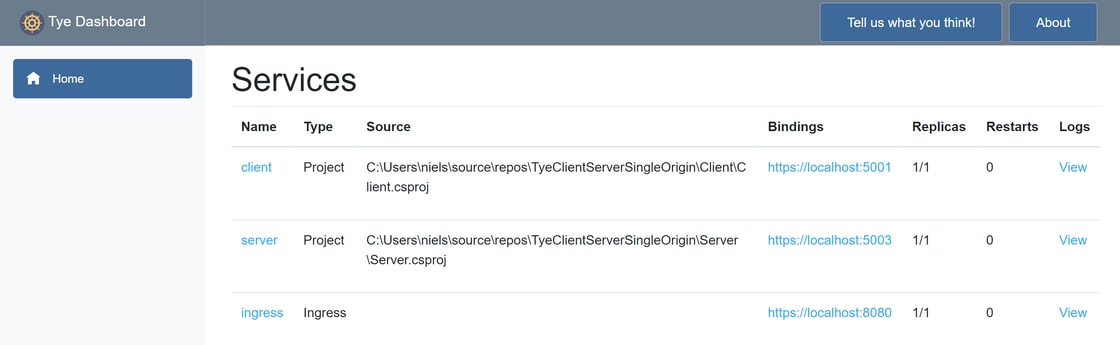 In addition to finding the URL for each service, you can also watch the log streams of each service.
## Summary {#summary}
API's need to provide CORS headers to explicitly allow ajax requests from web clients hosted on a different origin. Reverse proxies can merge the API origin and client origin onto a single origin. Using Microsoft's experimental Project Tye, you can configure an ingress/proxy to forward requests from '*/api*' to the Web API, and all other requests to the Blazor WASM client.
You can learn more about project Tye on its GitHub repository.