---
title: "Hidden Gem: Take screenshots using built-in commands in Chrome/Edge"
excerpt: "Chromium browsers such as Chrome and Edge have many lesser known features. One of those features is the ability to take screenshots of your current tab content. These commands are even more powerful when you emulate different devices and resolutions."
publishDate: "2020-08-10T00:00:00"
createDate: "2020-08-07T01:49:28.78"
updateDate: "2021-01-30T23:42:58.02"
category: "web"
categoryName: "Web"
tags: ["Web","DevTools","Chrome","Edge"]
permalink: "/blog/web/hidden-gem-take-screenshots-using-built-in-commands-in-chrome-edge"
canonical: "/blog/web/hidden-gem-take-screenshots-using-built-in-commands-in-chrome-edge"
image: {"src":"/media/kk3ntmq5/screenshot-long.png","focalPoint":{"left":0.5,"top":0.4944606413994169},"crops":[{"alias":"Banner","width":1120,"height":400,"coordinates":null}]}
imageAlt: "Microsoft Edge and Google Chrome logo + Hidden gem: screenshots"
imageBackgroundColor: "#333"
thumbnailImage: {"src":"/media/a1anrv4u/screenshot-square.png","focalPoint":{"left":0.5,"top":0.5003385624272424},"crops":[{"alias":"thumbnail","width":250,"height":250,"coordinates":null}]}
thumbnailImageAlt: "Microsoft Edge and Google Chrome logo"
metaTitle: "Hidden Gem: Take screenshots using built-in commands in Chrome/Edge"
metaDescription: "Chromium browsers such as Chrome and Edge have many lesser known features. One of those features is the ability to take screenshots of your current tab content. These commands are even more powerful when you emulate different devices and resolutions."
ogTitle: "Hidden Gem: Take screenshots using built-in commands in Chrome/Edge"
ogDescription: "Chromium browsers such as Chrome and Edge have many lesser known features. One of those features is the ability to take screenshots of your current tab content. These commands are even more powerful when you emulate different devices and resolutions."
ogImage: {"src":"/media/iyihxvja/screenshot-social.png","focalPoint":{"left":0.5,"top":0.5014631297646932},"crops":[{"alias":"OpenGraph","width":1200,"height":630,"coordinates":null}]}
ogImageAlt: "Microsoft Edge and Google Chrome logo + Hidden gem: screenshots"
relatedPostKeys: ["f03e3684c0074fe78fc2e8564e820304","c9b9c88b724b485bb3eab6d55f5554ef"]
noIndex: false
noFollow: false
sitemapExclude: false
headHtml: |-
  <script type="application/ld+json">{
    "@context": "http://schema.org",
    "@type": "VideoObject",
    "name": "Take screenshots using built-in commands in Chrome/Edge (Chromium)",
    "description": "Chromium browsers such as Chrome and Edge have many lesser known features. One of those features is the ability to take screenshots of your current tab content. These commands are even more powerful when you emulate different devices and resolutions.  If you prefer reading instructions instead of following a video, check out this article at swimburger.net: https://swimburger.net/blog/web/hidden-gem-take-screenshots-using-built-in-commands-in-chrome-edge  Follow me on Twitter @RealSwimburger: https://twitter.com/RealSwimburger  ► Music Credit: 'Low Frequency Music'  Track Name: 'Opportunity'  Music By: Low Frequency Music @ https://soundcloud.com/user-551516820  Official \"Low Frequency Music\" YouTube Channel HERE - https://www.youtube.com/LowFrequencyMusic  License for commercial use: Creative Commons Attribution 3.0 Unported \"Share Alike\" (CC BY-SA 3.0) License. Full License HERE - https://creativecommons.org/licenses/by-sa/3.0/legalcode  Music promoted by NCM https://goo.gl/fh3rEJ@ www.ChillOutMedia.com / www.LoFi-HipHop.com",
    "thumbnailUrl": "https://i.ytimg.com/vi/E7l-uCAUFEo/default.jpg",
    "uploadDate": "2021-01-27T15:00:05Z",
    "duration": "PT3M43S",
    "embedUrl": "https://www.youtube.com/embed/E7l-uCAUFEo"
  }</script>
source: {"nodeId":1283,"contentKey":"d7cf93b051b64e769e56b9bf8741609d","sortOrder":46}
---

Chromium browsers such as Chrome and Edge have many lesser known features. One of those features is the ability to take screenshots of your current tab content. <br>There are 4 different screenshot commands:


-   <a href="#capture-area-screenshot">Capture area screenshot</a>: Left-click drag over the area you want to screenshot
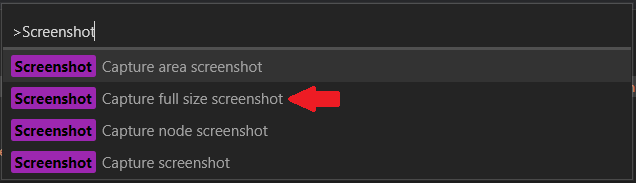
-   <a href="#capture-full-size-screenshot">Capture full size screenshot</a>: Take a screenshot of the entire page, **including off-screen scrollabe content**
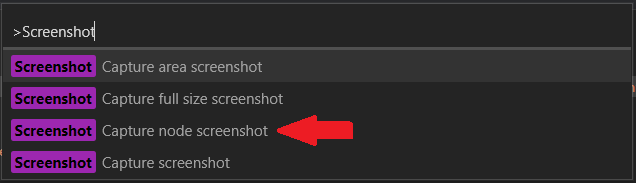
-   <a href="#capture-node-screenshot">Capture node screenshot</a>: Take a screenshot of the selected HtmlNode
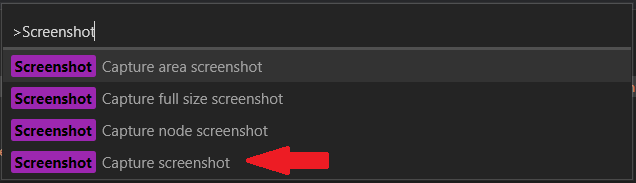
-   <a href="#capture-screenshot">Capture screenshot</a>: Take a screenshot of the viewport (content that's visible)


**These commands are even more powerful when you combine them with the device toolbar which let's you emulate different devices and resolutions.**


If you prefer video content, you can learn how to take screenshots using Chromium in this YouTube video:

<div class='embed-container'><iframe src='https://www.youtube.com/embed/E7l-uCAUFEo' allowfullscreen title="YouTube video player" loading="lazy"></iframe></div>


## Capture area screenshot {#capture-area-screenshot}


The 'Capture area screenshot' will allow you to draw a square on your web page which will then be exported as a PNG-file. This is basically a lite-version of the 'Snipping tool' or 'Snip & Sketch' application.<br>This is how to use 'Capture area screenshot':


<ol>
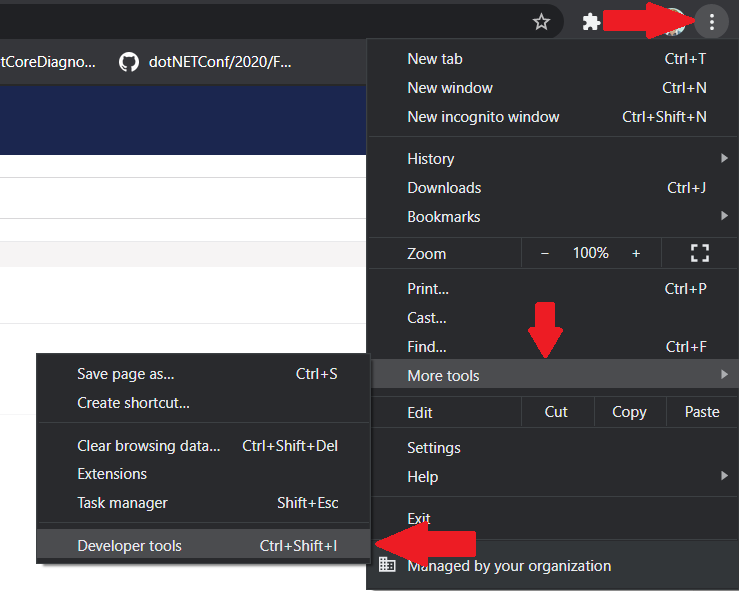
<li>Open DevTools by pressing <kbd>F12</kbd>, <kbd>ctrl</kbd>+<kbd>shift</kbd>+<kbd>i</kbd>, or by opening the menu &gt; More Tools &gt; Developer tools.<br>
<picture>
  <img src="https://swimburger.net/cdn-cgi/image/format=auto,quality=90,width=739/media/yubhqlfj/open-devtools.png" srcset="https://swimburger.net/cdn-cgi/image/format=auto,quality=90,width=430/media/yubhqlfj/open-devtools.png 430w, https://swimburger.net/cdn-cgi/image/format=auto,quality=90,width=645/media/yubhqlfj/open-devtools.png 645w, https://swimburger.net/cdn-cgi/image/format=auto,quality=90,width=718/media/yubhqlfj/open-devtools.png 718w, https://swimburger.net/cdn-cgi/image/format=auto,quality=90,width=739/media/yubhqlfj/open-devtools.png 739w" sizes="(max-width: 480px) 430px, (max-width: 768px) 718px, 739px" width="739" height="591" alt="Screenshot of opening DevTools using menu &gt; More Tools &gt; Developer Tools" loading="lazy" decoding="async">
</picture>
</li>
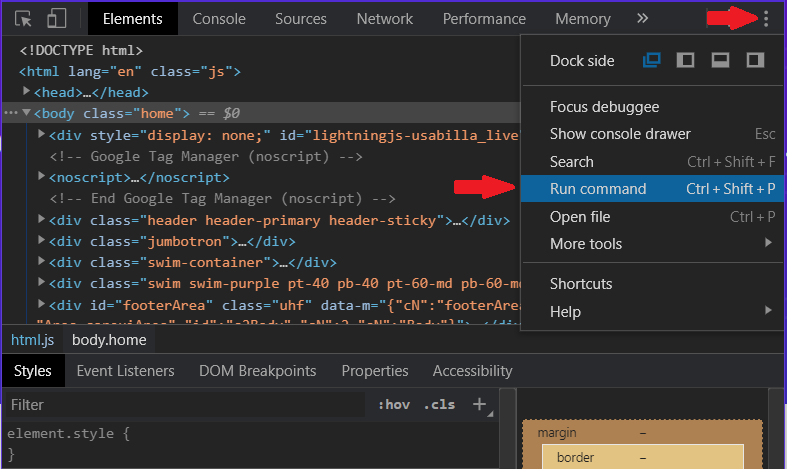
<li>Next, open the 'Run command' window by pressing <kbd>ctrl</kbd>+<kbd>shift</kbd>+<kbd>p</kbd> or by opening the menu inside of the DevTools window, click 'Run command'.<br>
<picture>
  <img src="https://swimburger.net/cdn-cgi/image/format=auto,quality=90,width=787/media/dzwncvjg/run-command.png" srcset="https://swimburger.net/cdn-cgi/image/format=auto,quality=90,width=430/media/dzwncvjg/run-command.png 430w, https://swimburger.net/cdn-cgi/image/format=auto,quality=90,width=645/media/dzwncvjg/run-command.png 645w, https://swimburger.net/cdn-cgi/image/format=auto,quality=90,width=718/media/dzwncvjg/run-command.png 718w, https://swimburger.net/cdn-cgi/image/format=auto,quality=90,width=787/media/dzwncvjg/run-command.png 787w" sizes="(max-width: 480px) 430px, (max-width: 768px) 718px, 787px" width="787" height="469" alt="Screenshot of the DevTools submenu to open the Run Command menu" loading="lazy" decoding="async">
</picture>
</li>
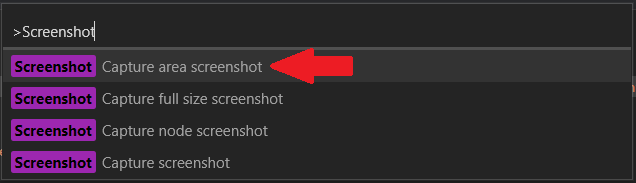
<li>Type 'Screenshot' and select '<strong>Capture area screenshot</strong>'.<br>
<picture>
  <img src="https://swimburger.net/cdn-cgi/image/format=auto,quality=90,width=636/media/xusd4i0n/run-screenshot-command.png" srcset="https://swimburger.net/cdn-cgi/image/format=auto,quality=90,width=430/media/xusd4i0n/run-screenshot-command.png 430w, https://swimburger.net/cdn-cgi/image/format=auto,quality=90,width=636/media/xusd4i0n/run-screenshot-command.png 636w" sizes="(max-width: 480px) 430px, (max-width: 768px) 718px, 636px" width="636" height="183" alt="Screenshot of running Capture area screenshot in DevTools" loading="lazy" decoding="async">
</picture>
</li>
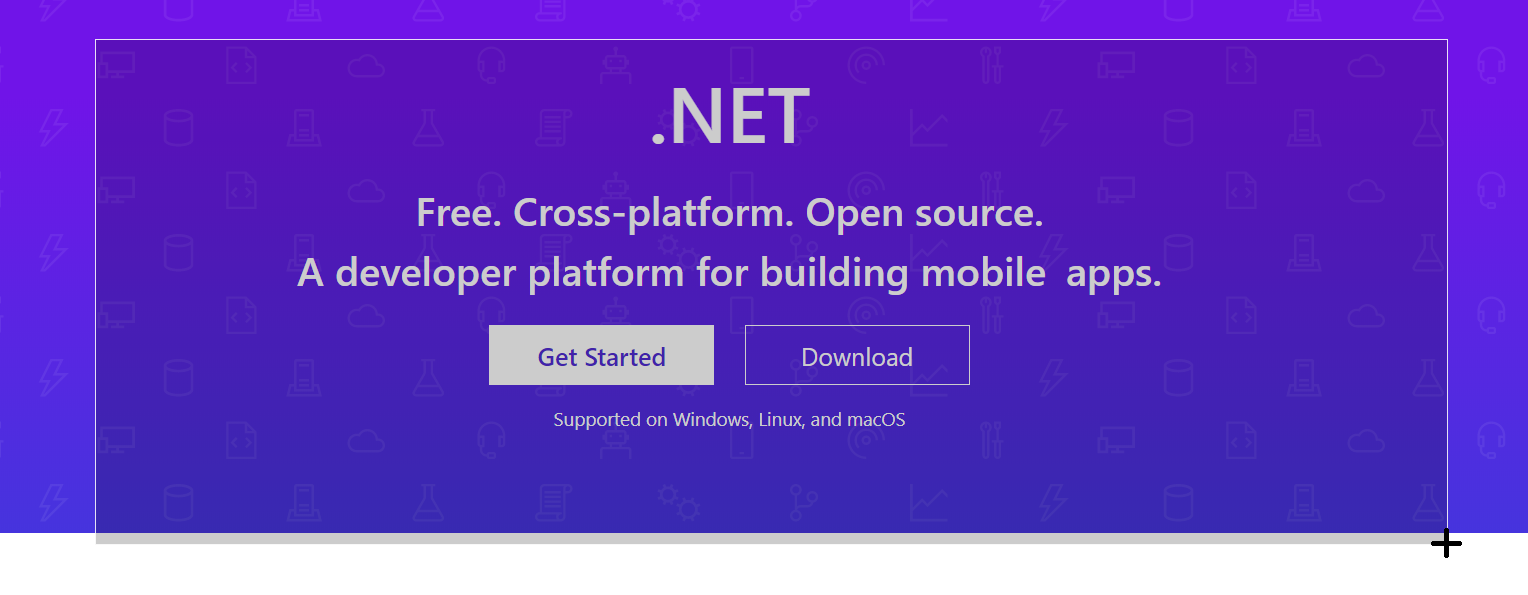
<li>Focus back onto the web page and draw a rectangle by left-clicking and dragging the mouse.<br>
<picture>
  <img src="https://swimburger.net/cdn-cgi/image/format=auto,quality=90,width=1528/media/pqeptwih/run-screenshot-area-command.png" srcset="https://swimburger.net/cdn-cgi/image/format=auto,quality=90,width=400/media/pqeptwih/run-screenshot-area-command.png 400w, https://swimburger.net/cdn-cgi/image/format=auto,quality=90,width=600/media/pqeptwih/run-screenshot-area-command.png 600w, https://swimburger.net/cdn-cgi/image/format=auto,quality=90,width=718/media/pqeptwih/run-screenshot-area-command.png 718w, https://swimburger.net/cdn-cgi/image/format=auto,quality=90,width=800/media/pqeptwih/run-screenshot-area-command.png 800w, https://swimburger.net/cdn-cgi/image/format=auto,quality=90,width=1077/media/pqeptwih/run-screenshot-area-command.png 1077w, https://swimburger.net/cdn-cgi/image/format=auto,quality=90,width=1436/media/pqeptwih/run-screenshot-area-command.png 1436w, https://swimburger.net/cdn-cgi/image/format=auto,quality=90,width=1528/media/pqeptwih/run-screenshot-area-command.png 1528w" sizes="(max-width: 480px) 400px, (max-width: 768px) 718px, 1528px" width="1528" height="595" alt="Screenshot of drawing an area to screenshot" loading="lazy" decoding="async">
</picture>
</li>
<li>Now the browser will automatically save the screenshot to disk or prompt you for a location to store it.</li>
</ol>


## Capture full size screenshot {#capture-full-size-screenshot}

The 'Capture full size screenshot' will take a screenshot of the entire webpage for you, including the content that's off-screen which you would normally have to scroll for. This is by far the most useful screenshot command as it is really hard to do manually.<br>This is how to use 'Capture full size screenshot':

<ol>
<li>Open DevTools by pressing <kbd>F12</kbd>, <kbd>ctrl</kbd>+<kbd>shift</kbd>+<kbd>i</kbd>, or by opening the menu &gt; More Tools &gt; Developer tools.<br>
<picture>
  <img src="https://swimburger.net/cdn-cgi/image/format=auto,quality=90,width=739/media/yubhqlfj/open-devtools.png" srcset="https://swimburger.net/cdn-cgi/image/format=auto,quality=90,width=430/media/yubhqlfj/open-devtools.png 430w, https://swimburger.net/cdn-cgi/image/format=auto,quality=90,width=645/media/yubhqlfj/open-devtools.png 645w, https://swimburger.net/cdn-cgi/image/format=auto,quality=90,width=718/media/yubhqlfj/open-devtools.png 718w, https://swimburger.net/cdn-cgi/image/format=auto,quality=90,width=739/media/yubhqlfj/open-devtools.png 739w" sizes="(max-width: 480px) 430px, (max-width: 768px) 718px, 739px" width="739" height="591" alt="Screenshot of opening DevTools using menu &gt; More Tools &gt; Developer Tools" loading="lazy" decoding="async">
</picture>
</li>
<li>Next, open the 'Run command' window by pressing <kbd>ctrl</kbd>+<kbd>shift</kbd>+<kbd>p</kbd> or by opening the menu inside of the DevTools window, click 'Run command'.<br>
<picture>
  <img src="https://swimburger.net/cdn-cgi/image/format=auto,quality=90,width=787/media/dzwncvjg/run-command.png" srcset="https://swimburger.net/cdn-cgi/image/format=auto,quality=90,width=430/media/dzwncvjg/run-command.png 430w, https://swimburger.net/cdn-cgi/image/format=auto,quality=90,width=645/media/dzwncvjg/run-command.png 645w, https://swimburger.net/cdn-cgi/image/format=auto,quality=90,width=718/media/dzwncvjg/run-command.png 718w, https://swimburger.net/cdn-cgi/image/format=auto,quality=90,width=787/media/dzwncvjg/run-command.png 787w" sizes="(max-width: 480px) 430px, (max-width: 768px) 718px, 787px" width="787" height="469" alt="Screenshot of the DevTools submenu to open the Run Command menu" loading="lazy" decoding="async">
</picture>
</li>
<li>Type 'Screenshot' and select '<strong>Capture full size screenshot</strong>'.<br>
<picture>
  <img src="https://swimburger.net/cdn-cgi/image/format=auto,quality=90,width=636/media/ltua4ejx/run-full-size-screenshot.png" srcset="https://swimburger.net/cdn-cgi/image/format=auto,quality=90,width=430/media/ltua4ejx/run-full-size-screenshot.png 430w, https://swimburger.net/cdn-cgi/image/format=auto,quality=90,width=636/media/ltua4ejx/run-full-size-screenshot.png 636w" sizes="(max-width: 480px) 430px, (max-width: 768px) 718px, 636px" width="636" height="183" alt="Screenshot of running Capture full size screenshot in DevTools" loading="lazy" decoding="async">
</picture>
</li>
<li>Now the browser will automatically save the screenshot to disk or prompt you for a location to store it.</li>
</ol>


## Capture node screenshot {#capture-node-screenshot}

The 'Capture node screenshot' will take a screenshot of the HTML Node you focused on in the DevTools.<br>This is how to use 'Capture node screenshot':

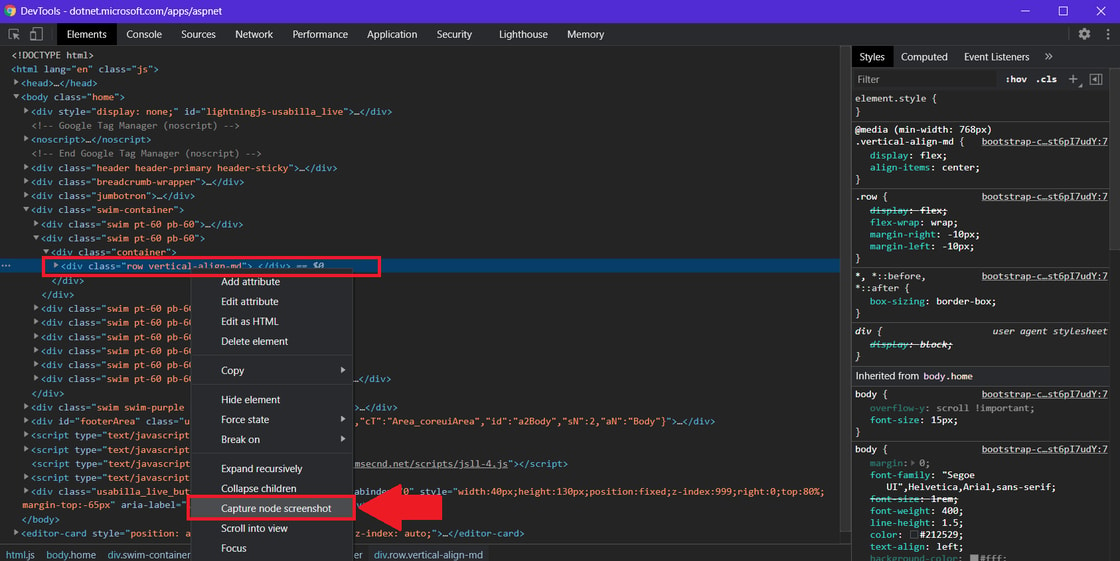
**Chrome/Edge version 86** introduced an easier way to capture node screenshots:

<ol>
<li>Open DevTools by pressing <kbd>F12</kbd>, <kbd>ctrl</kbd>+<kbd>shift</kbd>+<kbd>i</kbd>, or by opening the menu &gt; More Tools &gt; Developer tools.<br>
<picture>
  <img src="https://swimburger.net/cdn-cgi/image/format=auto,quality=90,width=739/media/yubhqlfj/open-devtools.png" srcset="https://swimburger.net/cdn-cgi/image/format=auto,quality=90,width=430/media/yubhqlfj/open-devtools.png 430w, https://swimburger.net/cdn-cgi/image/format=auto,quality=90,width=645/media/yubhqlfj/open-devtools.png 645w, https://swimburger.net/cdn-cgi/image/format=auto,quality=90,width=718/media/yubhqlfj/open-devtools.png 718w, https://swimburger.net/cdn-cgi/image/format=auto,quality=90,width=739/media/yubhqlfj/open-devtools.png 739w" sizes="(max-width: 480px) 430px, (max-width: 768px) 718px, 739px" width="739" height="591" alt="Screenshot of opening DevTools using menu &gt; More Tools &gt; Developer Tools" loading="lazy" decoding="async">
</picture>
</li>
<li>Next, select the HTML node you want to take a screenshot of in the 'Elements' tab.</li>
<li>Right-click the node and click "Capture node screenshot" in the context menu.<br>
<picture>
  <img src="https://swimburger.net/cdn-cgi/image/format=auto,quality=90,width=1120/media/jnofryzo/capture-node-screenshot-chrome-86.png" srcset="https://swimburger.net/cdn-cgi/image/format=auto,quality=90,width=430/media/jnofryzo/capture-node-screenshot-chrome-86.png 430w, https://swimburger.net/cdn-cgi/image/format=auto,quality=90,width=645/media/jnofryzo/capture-node-screenshot-chrome-86.png 645w, https://swimburger.net/cdn-cgi/image/format=auto,quality=90,width=718/media/jnofryzo/capture-node-screenshot-chrome-86.png 718w, https://swimburger.net/cdn-cgi/image/format=auto,quality=90,width=860/media/jnofryzo/capture-node-screenshot-chrome-86.png 860w, https://swimburger.net/cdn-cgi/image/format=auto,quality=90,width=1077/media/jnofryzo/capture-node-screenshot-chrome-86.png 1077w, https://swimburger.net/cdn-cgi/image/format=auto,quality=90,width=1120/media/jnofryzo/capture-node-screenshot-chrome-86.png 1120w, https://swimburger.net/cdn-cgi/image/format=auto,quality=90,width=1436/media/jnofryzo/capture-node-screenshot-chrome-86.png 1436w, https://swimburger.net/cdn-cgi/image/format=auto,quality=90,width=1680/media/jnofryzo/capture-node-screenshot-chrome-86.png 1680w" sizes="(max-width: 480px) 430px, (max-width: 768px) 718px, 1120px" width="1120" height="561" alt="Screenshot of clicking &quot;Capture node screenshot&quot; in node context menu" loading="lazy" decoding="async">
</picture>
</li>
<li>Now the browser will automatically save the screenshot to disk or prompt you for a location to store it.</li>
</ol>


This is the alternative way to capture node screenshot which is available **pre-86 Chrome/Edge:**


<ol>
<li>Open DevTools by pressing <kbd>F12</kbd>, <kbd>ctrl</kbd>+<kbd>shift</kbd>+<kbd>i</kbd>, or by opening the menu &gt; More Tools &gt; Developer tools.<br>
<picture>
  <img src="https://swimburger.net/cdn-cgi/image/format=auto,quality=90,width=739/media/yubhqlfj/open-devtools.png" srcset="https://swimburger.net/cdn-cgi/image/format=auto,quality=90,width=430/media/yubhqlfj/open-devtools.png 430w, https://swimburger.net/cdn-cgi/image/format=auto,quality=90,width=645/media/yubhqlfj/open-devtools.png 645w, https://swimburger.net/cdn-cgi/image/format=auto,quality=90,width=718/media/yubhqlfj/open-devtools.png 718w, https://swimburger.net/cdn-cgi/image/format=auto,quality=90,width=739/media/yubhqlfj/open-devtools.png 739w" sizes="(max-width: 480px) 430px, (max-width: 768px) 718px, 739px" width="739" height="591" alt="Screenshot of opening DevTools using menu &gt; More Tools &gt; Developer Tools" loading="lazy" decoding="async">
</picture>
</li>
<li>Next, select the HTML you want to take a screenshot of in the 'Elements' tab. <br>
<p class="panel panel--warning">If you skip this step, nothing will happen when running the screenshot command and no warning will be shown.</p>
</li>
<li>Open the 'Run command' window by pressing <kbd>ctrl</kbd>+<kbd>shift</kbd>+<kbd>p</kbd> or by opening the menu inside of the DevTools window, click 'Run command'.<br>
<picture>
  <img src="https://swimburger.net/cdn-cgi/image/format=auto,quality=90,width=787/media/dzwncvjg/run-command.png" srcset="https://swimburger.net/cdn-cgi/image/format=auto,quality=90,width=430/media/dzwncvjg/run-command.png 430w, https://swimburger.net/cdn-cgi/image/format=auto,quality=90,width=645/media/dzwncvjg/run-command.png 645w, https://swimburger.net/cdn-cgi/image/format=auto,quality=90,width=718/media/dzwncvjg/run-command.png 718w, https://swimburger.net/cdn-cgi/image/format=auto,quality=90,width=787/media/dzwncvjg/run-command.png 787w" sizes="(max-width: 480px) 430px, (max-width: 768px) 718px, 787px" width="787" height="469" alt="Screenshot of the DevTools submenu to open the Run Command menu" loading="lazy" decoding="async">
</picture>
</li>
<li>Type 'Screenshot' and select '<strong>Capture node screenshot</strong>'.<br>
<picture>
  <img src="https://swimburger.net/cdn-cgi/image/format=auto,quality=90,width=636/media/i30hkzta/run-node-screenshot-command.png" srcset="https://swimburger.net/cdn-cgi/image/format=auto,quality=90,width=430/media/i30hkzta/run-node-screenshot-command.png 430w, https://swimburger.net/cdn-cgi/image/format=auto,quality=90,width=636/media/i30hkzta/run-node-screenshot-command.png 636w" sizes="(max-width: 480px) 430px, (max-width: 768px) 718px, 636px" width="636" height="183" alt="Screenshot of running Capture node screenshot in DevTools" loading="lazy" decoding="async">
</picture>
</li>
<li>Now the browser will automatically save the screenshot to disk or prompt you for a location to store it.</li>
</ol>


## Capture screenshot {#capture-screenshot}

The 'Capture screenshot' will take a screenshot of the viewport. With other words, everything of the website that is visible inside the browser.<br>This is how to use 'Capture screenshot':

<ol>
<li>Open DevTools by pressing <kbd>F12</kbd>, <kbd>ctrl</kbd>+<kbd>shift</kbd>+<kbd>i</kbd>, or by opening the menu &gt; More Tools &gt; Developer tools.<br>
<picture>
  <img src="https://swimburger.net/cdn-cgi/image/format=auto,quality=90,width=739/media/yubhqlfj/open-devtools.png" srcset="https://swimburger.net/cdn-cgi/image/format=auto,quality=90,width=430/media/yubhqlfj/open-devtools.png 430w, https://swimburger.net/cdn-cgi/image/format=auto,quality=90,width=645/media/yubhqlfj/open-devtools.png 645w, https://swimburger.net/cdn-cgi/image/format=auto,quality=90,width=718/media/yubhqlfj/open-devtools.png 718w, https://swimburger.net/cdn-cgi/image/format=auto,quality=90,width=739/media/yubhqlfj/open-devtools.png 739w" sizes="(max-width: 480px) 430px, (max-width: 768px) 718px, 739px" width="739" height="591" alt="Screenshot of opening DevTools using menu &gt; More Tools &gt; Developer Tools" loading="lazy" decoding="async">
</picture>
</li>
<li>Open the 'Run command' window by pressing <kbd>ctrl</kbd>+<kbd>shift</kbd>+<kbd>p</kbd> or by opening the menu inside of the DevTools window, click 'Run command'.<br>
<picture>
  <img src="https://swimburger.net/cdn-cgi/image/format=auto,quality=90,width=787/media/dzwncvjg/run-command.png" srcset="https://swimburger.net/cdn-cgi/image/format=auto,quality=90,width=430/media/dzwncvjg/run-command.png 430w, https://swimburger.net/cdn-cgi/image/format=auto,quality=90,width=645/media/dzwncvjg/run-command.png 645w, https://swimburger.net/cdn-cgi/image/format=auto,quality=90,width=718/media/dzwncvjg/run-command.png 718w, https://swimburger.net/cdn-cgi/image/format=auto,quality=90,width=787/media/dzwncvjg/run-command.png 787w" sizes="(max-width: 480px) 430px, (max-width: 768px) 718px, 787px" width="787" height="469" alt="Screenshot of the DevTools submenu to open the Run Command menu" loading="lazy" decoding="async">
</picture>
</li>
<li>Type 'Screenshot' and select '<strong>Capture screenshot</strong>'.<br>
<picture>
  <img src="https://swimburger.net/cdn-cgi/image/format=auto,quality=90,width=636/media/ouapbnef/run-screenshot.png" srcset="https://swimburger.net/cdn-cgi/image/format=auto,quality=90,width=430/media/ouapbnef/run-screenshot.png 430w, https://swimburger.net/cdn-cgi/image/format=auto,quality=90,width=636/media/ouapbnef/run-screenshot.png 636w" sizes="(max-width: 480px) 430px, (max-width: 768px) 718px, 636px" width="636" height="183" alt="Screenshot of running Capture screenshot in DevTools" loading="lazy" decoding="async">
</picture>
</li>
<li>Now the browser will automatically save the screenshot to disk or prompt you for a location to store it.</li>
</ol>


## Taking screenshots while emulating devices {#taking-screenshots-while-emulating-devices}

Chromium browsers also have powerful tools to simulate other devices such as mobiles phones, tablets, and computers with different resolutions. Combining this with the screenshot commands allows you to quickly take screenshots of what it would look like on a particular device.


Even if your own machine's resolution is lower than the simulated device, **the screenshots will be in the resolution of the simulated device**. This basically means you can take screenshots in higher resolution than your own screen!


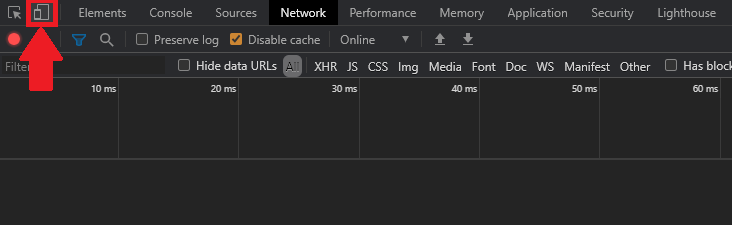
To start simulating devices, click on the 'Toggle device toolbar' button in the DevTools:

<picture>
  <img src="https://swimburger.net/cdn-cgi/image/format=auto,quality=90,width=732/media/iwlhc2u2/clicking-toggle-device-toolbar.png" srcset="https://swimburger.net/cdn-cgi/image/format=auto,quality=90,width=430/media/iwlhc2u2/clicking-toggle-device-toolbar.png 430w, https://swimburger.net/cdn-cgi/image/format=auto,quality=90,width=645/media/iwlhc2u2/clicking-toggle-device-toolbar.png 645w, https://swimburger.net/cdn-cgi/image/format=auto,quality=90,width=718/media/iwlhc2u2/clicking-toggle-device-toolbar.png 718w, https://swimburger.net/cdn-cgi/image/format=auto,quality=90,width=732/media/iwlhc2u2/clicking-toggle-device-toolbar.png 732w" sizes="(max-width: 480px) 430px, (max-width: 768px) 718px, 732px" width="732" height="225" alt="Screenshot of Chrome DevTools clicking on 'Toggle device manager' button" loading="lazy" decoding="async">
</picture>

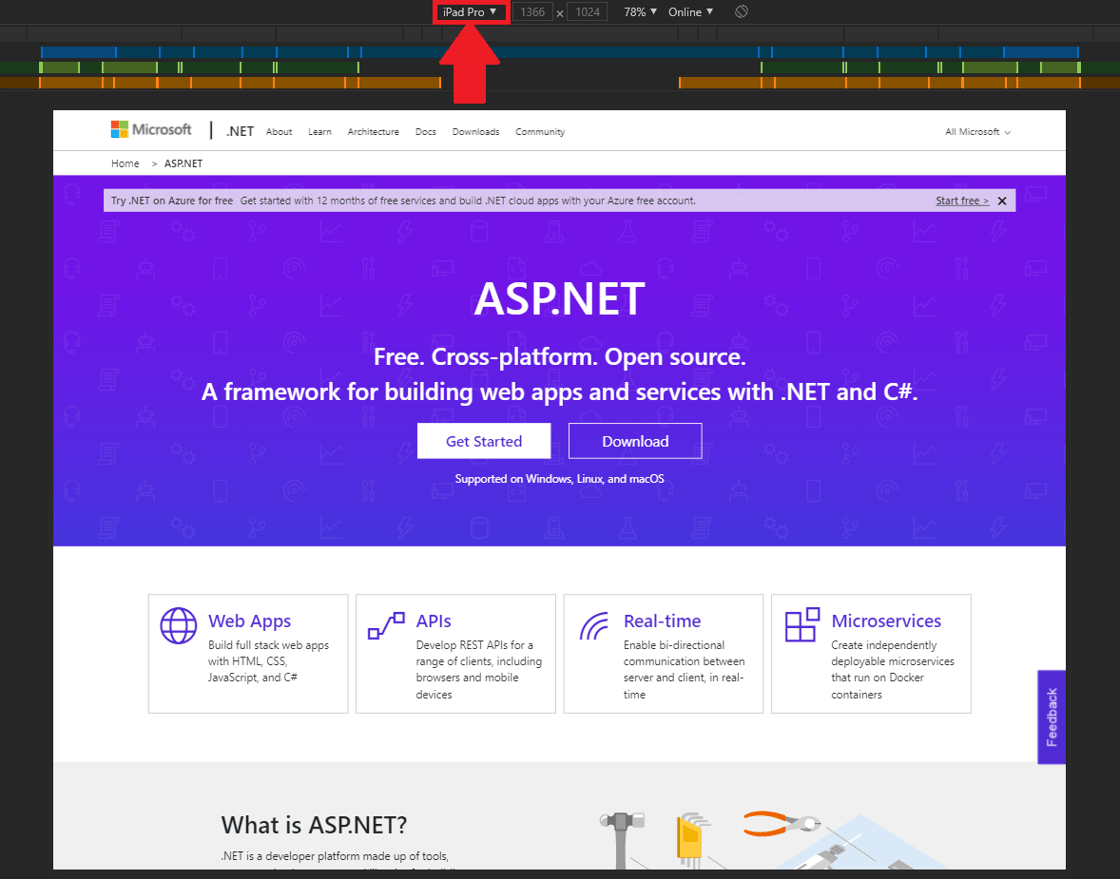
Change the simulated device to an iPad Pro:

<picture>
  <img src="https://swimburger.net/cdn-cgi/image/format=auto,quality=90,width=1120/media/c1of3pos/screenshot-of-emulating-an-ipad-pro.png" srcset="https://swimburger.net/cdn-cgi/image/format=auto,quality=90,width=430/media/c1of3pos/screenshot-of-emulating-an-ipad-pro.png 430w, https://swimburger.net/cdn-cgi/image/format=auto,quality=90,width=645/media/c1of3pos/screenshot-of-emulating-an-ipad-pro.png 645w, https://swimburger.net/cdn-cgi/image/format=auto,quality=90,width=718/media/c1of3pos/screenshot-of-emulating-an-ipad-pro.png 718w, https://swimburger.net/cdn-cgi/image/format=auto,quality=90,width=860/media/c1of3pos/screenshot-of-emulating-an-ipad-pro.png 860w, https://swimburger.net/cdn-cgi/image/format=auto,quality=90,width=1077/media/c1of3pos/screenshot-of-emulating-an-ipad-pro.png 1077w, https://swimburger.net/cdn-cgi/image/format=auto,quality=90,width=1120/media/c1of3pos/screenshot-of-emulating-an-ipad-pro.png 1120w" sizes="(max-width: 480px) 430px, (max-width: 768px) 718px, 1120px" width="1120" height="879" alt="Screenshot of device manager selecting iPad Pro simulation" loading="lazy" decoding="async">
</picture>


Now run a screenshot command and inspect the resolution of the screenshot. **Even though the screen used in this tutorial is only 1920x1080 pixels, the screenshot taken while simulating iPad Pro is 2732x2048 pixels.**