---
title: "How to run ASP.NET Core Web Application as a service on Linux without reverse proxy, no NGINX or Apache"
excerpt: "This article walks us through running a ASP.NET Core web application on Linux (RHEL) using systemd. The end goal is to serve ASP.NET Core directly via the built-in Kestrel webserver over port 80/443."
publishDate: "2020-02-10T00:00:00"
createDate: "2020-01-23T06:35:15.57"
updateDate: "2022-07-26T04:13:10.047"
category: "dotnet"
categoryName: ".NET"
tags: ["DotNet","C#","CSharp","DotNetCore","ASPNET","RedHat","RHEL",".NET",".NET Core","ASP.NET Core","systemd","Linux","Red Hat"]
permalink: "/blog/dotnet/how-to-run-aspnet-core-as-a-service-on-linux"
canonical: "/blog/dotnet/how-to-run-aspnet-core-as-a-service-on-linux"
image: {"src":"/media/p54km0cu/dotnet_redhat-long.png","focalPoint":{"left":0.5,"top":0.49912536443148686}}
imageAlt: ".NET Core logo + Dotnet bot wearing Red Hat"
imageBackgroundColor: "#2D2D2D"
thumbnailImage: {"src":"/media/fodlodm5/dotnet_redhat-square.png","focalPoint":{"left":0.5,"top":0.5000116669388952}}
thumbnailImageAlt: ".NET Core logo + Dotnet bot wearing Red Hat"
metaTitle: "Run ASP.NET Core Web Application as service on Linux without reverse proxy"
metaDescription: "This article walks us through running a ASP.NET Core web application on Linux (RHEL) using systemd. The end goal is to serve ASP.NET Core directly via the built-in Kestrel webserver over port 80/443 without reverse proxies."
ogTitle: "How to run ASP.NET Core Web Application as a service on Linux without reverse proxy, no NGINX or Apache"
ogDescription: "This article walks us through running a ASP.NET Core web application on Linux (RHEL) using systemd. The end goal is to serve ASP.NET Core directly via the built-in Kestrel webserver over port 80/443 without reverse proxies."
ogImage: {"src":"/media/nnlbid1l/dotnet_redhat-social.png","focalPoint":{"left":0.5,"top":0.4982782423790406}}
ogImageAlt: ".NET Core logo + Dotnet bot wearing Red Hat"
relatedPostKeys: ["ca698c8c39f64a7abf52120d2c688e22","42eab58704ef42129ca5d87053f026db"]
noIndex: false
noFollow: false
sitemapExclude: false
source: {"nodeId":1258,"contentKey":"0da0d49da8fd41aaad1f4a7accdffe68","sortOrder":37}
---

<p class="panel panel--info">This article has been updated for .NET 6 and RHEL 8 on 03/20/2022.</p>

This article walks us through running a ASP.NET Core web application on Red Hat Enterprise Linux (RHEL) 8 using systemd. Here's what we'll cover:


1.  Running ASP.NET Core using **systemd**
2.  Adding **Systemd integration package**
3.  Making ASP.NET Core **accessible externally** (Kestrel only, no reverse proxy)
4.  Serving ASP.NET Core over **port 80 & 443** (Kestrel only, no reverse proxy)


<p class="panel panel--warning">Your website will use HTTPS over 443, however, this tutorial will use the out-of-the-box development certificates, and not walk you through installing your own certificates for secure HTTPS communication.</p>


<strong>The end goal is to serve ASP.NET Core directly via the built-in Kestrel webserver over port 80/443.<br>No reverse proxy, no NGINX and no Apache. </strong>Reverse proxies provide a lot of fantastic functionality, however, if you don't need those features, you can serve ASP.NET application directly via the built-in Kestrel server.


To learn how to run .NET services (non-web stuff) on Linux, check out <a href="/blog/dotnet/how-to-run-a-dotnet-core-console-app-as-a-service-using-systemd-on-linux" title="How to run a .NET Core console application as a service using Systemd on Linux">how to run .NET Console app as a service using Systemd on Linux.</a>


## Prerequisites: {#prerequisites}


-   Red Hat Enterprise Linux (or a compatible Unix based OS)
-   .NET 6 installed (<a rel="noopener" href="https://access.redhat.com/documentation/en-us/net/6.0/html/getting_started_with_.net_on_rhel_8/index" target="_blank">Get started instructions from Red Hat</a>)
-   Sudo privileges


<p class="panel panel--info">This walkthrough should work for most .NET supported Linux distributions, not just RHEL, albeit with small modifications. This tutorial should also work for older versions of .NET too.</p>


## Run ASP.NET Core using Systemd {#run-aspnet-core-using-systemd}

Let's start by creating a new ASP.NET Core application using the web-template:

<pre style="color:#000000;background:#ffffff;">mkdir ~<span style="color:#40015a; ">/AspNetSite</span>&#10;<span style="color:#bb7977; font-weight:bold; ">cd</span> ~<span style="color:#40015a; ">/AspNetSite</span>&#10;dotnet new web&#10;</pre>

We'll be using this application throughout the walkthrough. Let's verify that the web application works:

<pre style="color:#000000;background:#ffffff;">dotnet run&#10;<span style="color:#696969; "># Output should looks like this:</span>&#10;<span style="color:#696969; ">#   info: Microsoft.Hosting.Lifetime[0]</span>&#10;<span style="color:#696969; ">#         Now listening on: </span><span style="color:#5555dd; ">https://localhost:5001</span>&#10;<span style="color:#696969; ">#   info: Microsoft.Hosting.Lifetime[0]</span>&#10;<span style="color:#696969; ">#         Now listening on: </span><span style="color:#5555dd; ">http://localhost:5000</span>&#10;<span style="color:#696969; ">#   info: Microsoft.Hosting.Lifetime[0]</span>&#10;<span style="color:#696969; ">#         Application started. Press Ctrl+C to shut down.</span>&#10;<span style="color:#696969; ">#   info: Microsoft.Hosting.Lifetime[0]</span>&#10;<span style="color:#696969; ">#         Hosting environment: Development</span>&#10;<span style="color:#696969; ">#   info: Microsoft.Hosting.Lifetime[0]</span>&#10;<span style="color:#696969; ">#         Content root path: /home/yourusername/AspNetSite</span>&#10;</pre>

In the output you can find an HTTPS and an HTTP URL, take note of the HTTP URL for the next command. **Open a separate shell** (leave the other shell running) and use the curl HTTP-client to send an HTTP request to the application using the HTTP URL:

<pre style="color:#000000;background:#ffffff;"><span style="color:#696969; "># while 'dotnet run' is running, open a new shell to run this curl command</span>&#10;curl http<span style="color:#808030; ">:</span><span style="color:#40015a; ">/</span><span style="color:#40015a; ">/localhost</span><span style="color:#808030; ">:</span><span style="color:#008c00; ">5000</span>&#10;<span style="color:#696969; "># Output should be 'Hello World!'</span>&#10;</pre>


If the application works, go back to the first shell and stop the application by pressing <kbd>ctrl</kbd> + <kbd>c</kbd>.<br>Now, publish the project somewhere logical such as <em>/srv/AspNetSite</em>:


<pre style="color:#000000;background:#ffffff;">sudo mkdir <span style="color:#40015a; ">/srv/AspNetSite</span>&#10;sudo chown yourusername <span style="color:#40015a; ">/srv/AspNetSite</span><span style="color:#40015a; ">/</span>&#10;dotnet publish <span style="color:#44aadd; ">-c</span> Release <span style="color:#44aadd; ">-o</span> <span style="color:#40015a; ">/srv/AspNetSite</span><span style="color:#40015a; ">/</span>&#10;</pre>


The published result contains an executable called <em>AspNetSite</em> which will run the application. Let's verify we can also run the published application:


<pre style="color:#000000;background:#ffffff;"><span style="color:#3f3fbf; ">/srv/AspNetSite/AspNetSite</span>&#10;<span style="color:#3f7f59; "># output: </span>&#10;<span style="color:#3f7f59; ">#     info: Microsoft.Hosting.Lifetime[14]</span>&#10;<span style="color:#3f7f59; ">#           Now listening on: </span><span style="color:#3f3fbf; ">http://localhost:5000</span>&#10;<span style="color:#3f7f59; ">#     info: Microsoft.Hosting.Lifetime[14]</span>&#10;<span style="color:#3f7f59; ">#           Now listening on: </span><span style="color:#3f3fbf; ">https://localhost:5001</span>&#10;<span style="color:#3f7f59; ">#     info: Microsoft.Hosting.Lifetime[0]</span>&#10;<span style="color:#3f7f59; ">#           Application started. Press Ctrl+C to shut down.</span>&#10;<span style="color:#3f7f59; ">#     info: Microsoft.Hosting.Lifetime[0]</span>&#10;<span style="color:#3f7f59; ">#           Hosting environment: Production</span>&#10;<span style="color:#3f7f59; ">#     info: Microsoft.Hosting.Lifetime[0]</span>&#10;<span style="color:#3f7f59; ">#           Content root path: /home/yourusername/AspNetSite/</span>&#10;</pre>


To run services on Linux, Systemd uses '<strong>service unit configuration</strong>' files to describe how to run services. Let's create the file <em><strong>AspNetSite.service</strong></em> inside our project so we can store it in source control along with our code. Add the following content to <em>AspNetSite.service</em>:


<pre style="color:#000000;background:#ffffff;">[Unit]&#10;Description=ASP.NET Core web template&#10;&#10;[Service]&#10;# will set the Current Working Directory (CWD)&#10;WorkingDirectory=/srv/AspNetSite&#10;# systemd will run this executable to start the service&#10;# if /usr/bin/dotnet doesn<span style="color:#2a00ff; ">'</span>t work, use `which dotnet` to find correct dotnet executable path&#10;ExecStart=/usr/bin/dotnet /srv/AspNetSite/AspNetSite&#10;# to query logs using journalctl, set a logical name here  &#10;SyslogIdentifier=AspNetSite&#10;&#10;# Use your username to keep things simple, for production scenario<span style="color:#2a00ff; ">'</span>s I recommend a dedicated user/group.&#10;# If you pick a different user, make sure dotnet and all permissions are set correctly to run the app.&#10;# To update permissions, use <span style="color:#2a00ff; ">'</span><span style="color:#2a00ff; ">chown yourusername -R /srv/AspNetSite</span><span style="color:#2a00ff; ">'</span> to take ownership of the folder and files,&#10;#       Use <span style="color:#2a00ff; ">'</span><span style="color:#2a00ff; ">chmod +x /srv/AspNetSite/AspNetSite</span><span style="color:#2a00ff; ">'</span> to allow execution of the executable file.&#10;User=yourusername&#10;&#10;# ensure the service restarts after crashing&#10;Restart=always&#10;# amount of time to wait before restarting the service              &#10;RestartSec=5&#10;&#10;# copied from dotnet documentation at&#10;# <span style="color:#3f3fbf; ">https://docs.microsoft.com/en-us/aspnet/core/host-and-deploy/linux-nginx</span>&#10;KillSignal=SIGINT&#10;Environment=ASPNETCORE_ENVIRONMENT=Production&#10;Environment=DOTNET_PRINT_TELEMETRY_MESSAGE=false&#10;&#10;[Install]&#10;WantedBy=multi-user.target&#10;</pre>


**Make sure to update the 'User' to your username.** Refer to the comments for an explanation of the specified options. For more information on the service unit configuration file, read the <a rel="noopener" href="https://www.freedesktop.org/software/systemd/man/systemd.service.html" target="_blank">freedesktop manual page</a> or the <a rel="noopener" href="https://access.redhat.com/documentation/en-us/red_hat_enterprise_linux/7/html/system_administrators_guide/chap-managing_services_with_systemd" target="_blank">Red Hat documentation</a>.


Systemd expects all configuration files to be put under <strong><em>/etc/systemd/system/</em></strong>. Copy the service configuration file to <em><strong>/etc/systemd/system/AspNetSite.service</strong></em> and tell systemd to reload the configuration files.


<pre style="color:#000000;background:#ffffff;">sudo cp AspNetSite<span style="color:#800000; font-weight:bold; ">.</span>service <span style="color:#40015a; ">/etc/systemd/system/AspNetSite.service</span>&#10;sudo systemctl daemon-reload&#10;</pre>


Now systemd is aware of the new 'AspNetSite' service. Using \``systemctl start AspNetSite`\` we can start the service.<br>Using \``systemctl status AspNetSite`\` we can query the status of the service. Let's start the service and check its status:


<pre style="color:#000000;background:#ffffff;">sudo systemctl start AspNetSite&#10;sudo systemctl status AspNetSite&#10;<span style="color:#696969; "># Output should be similar to below:</span>&#10;<span style="color:#696969; ">#   ● AspNetSite.service - ASP.NET Core web template</span>&#10;<span style="color:#696969; ">#      Loaded: loaded (/etc/systemd/system/AspNetSite.service; enabled; vendor preset: disabled)</span>&#10;<span style="color:#696969; ">#      Active: active (running) since Wed 2020-01-29 17:06:24 UTC; 13s ago</span>&#10;<span style="color:#696969; ">#    Main PID: 5187 (AspNetSite)</span>&#10;<span style="color:#696969; ">#      CGroup: /system.slice/AspNetSite.service</span>&#10;<span style="color:#696969; ">#              └─5187 /srv/AspNetSite/AspNetSite</span>&#10;<span style="color:#696969; ">#   </span>&#10;<span style="color:#696969; ">#   Jan 29 17:06:25 rhtest AspNetSite[5187]: info: Microsoft.Hosting.Lifetime[0]</span>&#10;<span style="color:#696969; ">#   Jan 29 17:06:25 rhtest AspNetSite[5187]: Now listening on: </span><span style="color:#5555dd; ">http://localhost:5000</span>&#10;<span style="color:#696969; ">#   Jan 29 17:06:25 rhtest AspNetSite[5187]: info: Microsoft.Hosting.Lifetime[0]</span>&#10;<span style="color:#696969; ">#   Jan 29 17:06:25 rhtest AspNetSite[5187]: Now listening on: </span><span style="color:#5555dd; ">https://localhost:5001</span>&#10;<span style="color:#696969; ">#   Jan 29 17:06:25 rhtest AspNetSite[5187]: info: Microsoft.Hosting.Lifetime[0]</span>&#10;<span style="color:#696969; ">#   Jan 29 17:06:25 rhtest AspNetSite[5187]: Application started. Press Ctrl+C to shut down.</span>&#10;<span style="color:#696969; ">#   Jan 29 17:06:25 rhtest AspNetSite[5187]: info: Microsoft.Hosting.Lifetime[0]</span>&#10;<span style="color:#696969; ">#   Jan 29 17:06:25 rhtest AspNetSite[5187]: Hosting environment: Production</span>&#10;<span style="color:#696969; ">#   Jan 29 17:06:25 rhtest AspNetSite[5187]: info: Microsoft.Hosting.Lifetime[0]</span>&#10;<span style="color:#696969; ">#   Jan 29 17:06:25 rhtest AspNetSite[5187]: Content root path: /srv/AspNetSite</span>&#10;</pre>


**Due to the** `Restart=always` **option, systemd will restart our service in case it crashed.** But it will **not automatically start the service when the machine reboots**. To enable automatic startup, use the following command:


<pre style="color:#000000;background:#ffffff;">sudo systemctl <span style="color:#bb7977; font-weight:bold; ">enable</span> AspNetSite&#10;</pre>

If everything is working correctly, we should be able to curl the application via localhost:5000:

<pre style="color:#000000;background:#ffffff;">curl http<span style="color:#808030; ">:</span><span style="color:#40015a; ">/</span><span style="color:#40015a; ">/localhost</span><span style="color:#808030; ">:</span><span style="color:#008c00; ">5000</span>&#10;<span style="color:#696969; "># Output should be 'Hello World!'</span>&#10;</pre>

The website is now running as a systemd service. There's a systemd-package provided by Microsoft to improve the integration with systemd. Let's set that up next.

## Add Systemd integration package {#add-systemd-integration-package}


Microsoft recently added a package to better integrate with systemd. When the integration is installed, the <strong>application will notify systemd when it's ready and when it's stopping</strong>. Additionally, <strong>systemd will understand the different log levels that the application logs</strong>.


Using the dotnet CLI, add the 'Microsoft.Extensions.Hosting.Systemd' (<a rel="noopener" href="https://www.nuget.org/packages/Microsoft.Extensions.Hosting.Systemd/" target="_blank">nuget</a>) package:


<pre style="color:#000000;background:#ffffff;">dotnet add package Microsoft<span style="color:#800000; font-weight:bold; ">.</span>Extensions<span style="color:#800000; font-weight:bold; ">.</span>Hosting<span style="color:#800000; font-weight:bold; ">.</span>Systemd&#10;</pre>


Next, we'll need to add one line to the *Program.cs*, `builder.Host.UseSystemd()`:


<pre style="color:#000000;background:#ffffff;"><span style="color:#7f0055; font-weight:bold; ">var</span> builder = WebApplication.CreateBuilder(args);&#10;builder.Host.UseSystemd();&#10;<span style="color:#7f0055; font-weight:bold; ">var</span> app = builder.Build();&#10;&#10;app.MapGet(<span style="color:#2a00ff; ">"</span><span style="color:#2a00ff; ">/</span><span style="color:#2a00ff; ">"</span>, () =&gt;  <span style="color:#2a00ff; ">"</span><span style="color:#2a00ff; ">Hello World!</span><span style="color:#2a00ff; ">"</span>);&#10;&#10;app.Run();&#10;</pre>


For demonstration purposes of the logging integration, update the <em>Program.cs</em> file with the following code:<span style="color: #b060b0;"></span> <span style="color: #b060b0;"></span>


<pre style="color:#000000;background:#ffffff;"><span style="color:#7f0055; font-weight:bold; ">var</span> builder = WebApplication.CreateBuilder(args);&#10;builder.Host.UseSystemd();&#10;<span style="color:#7f0055; font-weight:bold; ">var</span> app = builder.Build();&#10;&#10;app.MapGet(<span style="color:#2a00ff; ">"</span><span style="color:#2a00ff; ">/</span><span style="color:#2a00ff; ">"</span>, () =&gt; {&#10;	app.Logger.LogInformation(<span style="color:#2a00ff; ">"</span><span style="color:#2a00ff; ">Information - Hello World</span><span style="color:#2a00ff; ">"</span>);&#10;	app.Logger.LogWarning(<span style="color:#2a00ff; ">"</span><span style="color:#2a00ff; ">Warning - Hello World</span><span style="color:#2a00ff; ">"</span>);&#10;	app.Logger.LogError(<span style="color:#2a00ff; ">"</span><span style="color:#2a00ff; ">Error - Hello World</span><span style="color:#2a00ff; ">"</span>);&#10;	app.Logger.LogCritical(<span style="color:#2a00ff; ">"</span><span style="color:#2a00ff; ">Critical - Hello World</span><span style="color:#2a00ff; ">"</span>);&#10;	<span style="color:#7f0055; font-weight:bold; ">return</span> <span style="color:#2a00ff; ">"</span><span style="color:#2a00ff; ">Hello World!</span><span style="color:#2a00ff; ">"</span>;&#10;});&#10;&#10;app.Run();&#10;</pre>


Lastly, we need to update the file <em>AspNetSite.service</em> to specify 'type=Notify':


<pre style="color:#000000;background:#ffffff;">[Unit]&#10;Description=ASP.NET Core web template&#10;&#10;[Service]&#10;<b>Type=notify</b>&#10;# will set the Current Working Directory (CWD)&#10;WorkingDirectory=/srv/AspNetSite&#10;# systemd will run this executable to start the service&#10;# if /usr/bin/dotnet doesn<span style="color:#2a00ff; ">'</span>t work, use `which dotnet` to find correct dotnet executable path&#10;ExecStart=/usr/bin/dotnet /srv/AspNetSite/AspNetSite&#10;# to query logs using journalctl, set a logical name here  &#10;SyslogIdentifier=AspNetSite&#10;&#10;# Use your username to keep things simple, for production scenario<span style="color:#2a00ff; ">'</span>s I recommend a dedicated user/group.&#10;# If you pick a different user, make sure dotnet and all permissions are set correctly to run the app.&#10;# To update permissions, use <span style="color:#2a00ff; ">'</span><span style="color:#2a00ff; ">chown yourusername -R /srv/AspNetSite</span><span style="color:#2a00ff; ">'</span> to take ownership of the folder and files,&#10;#       Use <span style="color:#2a00ff; ">'</span><span style="color:#2a00ff; ">chmod +x /srv/AspNetSite/AspNetSite</span><span style="color:#2a00ff; ">'</span> to allow execution of the executable file.&#10;User=yourusername&#10;&#10;# ensure the service restarts after crashing&#10;Restart=always&#10;# amount of time to wait before restarting the service              &#10;RestartSec=5&#10;&#10;# copied from dotnet documentation at&#10;# <span style="color:#3f3fbf; ">https://docs.microsoft.com/en-us/aspnet/core/host-and-deploy/linux-nginx</span>&#10;KillSignal=SIGINT&#10;Environment=ASPNETCORE_ENVIRONMENT=Production&#10;Environment=DOTNET_PRINT_TELEMETRY_MESSAGE=false&#10;&#10;[Install]&#10;WantedBy=multi-user.target&#10;</pre>


Let's deploy all our changes. We'll need to publish the .NET app and stop/reload/start the systemd service: 


<pre style="color:#000000;background:#ffffff;">sudo systemctl stop AspNetSite&#10;dotnet publish <span style="color:#44aadd; ">-c</span> Release <span style="color:#44aadd; ">-o</span> <span style="color:#40015a; ">/srv/AspNetSite</span><span style="color:#40015a; ">/</span>&#10;sudo cp AspNetSite<span style="color:#800000; font-weight:bold; ">.</span>service <span style="color:#40015a; ">/etc/systemd/system/AspNetSite.service</span>&#10;sudo systemctl daemon-reload&#10;sudo systemctl start AspNetSite&#10;</pre>


The application logs are being captured by systemd. We can query the logs using 'journalctl', here are some examples:


<pre style="color:#000000;background:#ffffff;">sudo journalctl <span style="color:#44aadd; ">-u</span> AspNetSite <span style="color:#696969; ">#query all output, oldest to newest</span>&#10;sudo journalctl <span style="color:#44aadd; ">-u</span> AspNetSite <span style="color:#44aadd; ">-f</span> <span style="color:#696969; ">#query all output and follow live</span>&#10;sudo journalctl <span style="color:#44aadd; ">-u</span> AspNetSite <span style="color:#44aadd; ">-r</span> <span style="color:#696969; ">#query all output, newest to oldest</span>&#10;sudo journalctl <span style="color:#44aadd; ">-u</span> AspNetSite --<span style="color:#797997; ">since</span><span style="color:#808030; ">=</span><span style="color:#0000e6; ">"2020-01-17 11:00:00"</span> --<span style="color:#797997; ">until</span><span style="color:#808030; ">=</span><span style="color:#0000e6; ">"2020-01-17 11:15:00"</span> <span style="color:#696969; ">#filter by time</span>&#10;</pre>


The unit-flag (-u) allows us to filter by 'SyslogIdentifier' which we specified in 'AspNetSite.service'.<br>We can verify that the .NET Core logging integrates correctly by using the priority-flag (-p) on 'journalctl'. This will filter the output according the log levels below:


<table border="0">
<tbody>
<tr>
<td><strong>LogLevel</strong></td>
<td><strong>Syslog level</strong></td>
<td><strong>systemd name</strong></td>
</tr>
<tr>
<td>Trace/Debug</td>
<td>7</td>
<td>debug</td>
</tr>
<tr>
<td>Information</td>
<td>6</td>
<td>info</td>
</tr>
<tr>
<td>Warning</td>
<td>4</td>
<td>warning</td>
</tr>
<tr>
<td>Error</td>
<td>3</td>
<td>err</td>
</tr>
<tr>
<td>Critical</td>
<td>2</td>
<td class="">crit</td>
</tr>
</tbody>
</table>


For example, the following command will only print output with log level 4 and below meaning warning, error, and critical:


<pre style="color:#000000;background:#ffffff;">sudo journalctl <span style="color:#44aadd; ">-u</span> AspNetSite <span style="color:#44aadd; ">-p</span> <span style="color:#008c00; ">4</span>&#10;<span style="color:#696969; "># Output should be empty</span>&#10;</pre>

Let's first make a couple of HTTP request to the application using curl and then run the 'journalctl' query:

<pre style="color:#000000;background:#ffffff;">curl http<span style="color:#808030; ">:</span><span style="color:#40015a; ">/</span><span style="color:#40015a; ">/localhost</span><span style="color:#808030; ">:</span><span style="color:#008c00; ">5000</span>&#10;curl http<span style="color:#808030; ">:</span><span style="color:#40015a; ">/</span><span style="color:#40015a; ">/localhost</span><span style="color:#808030; ">:</span><span style="color:#008c00; ">5000</span>&#10;curl http<span style="color:#808030; ">:</span><span style="color:#40015a; ">/</span><span style="color:#40015a; ">/localhost</span><span style="color:#808030; ">:</span><span style="color:#008c00; ">5000</span>&#10;sudo journalctl <span style="color:#44aadd; ">-u</span> AspNetSite <span style="color:#44aadd; ">-p</span> <span style="color:#008c00; ">4</span>&#10;</pre>

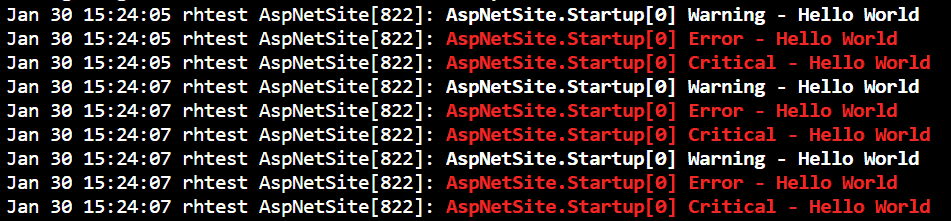
The 'journalctl' command should now return the different log statements we wrote 3 times.

<p><img src="/media/az3dawof/logs.png" alt="Log output from journalctl-command" width="951" height="221"></p>


<p class="panel panel--warning">The 'UseSystemd' function will not do anything when run outside of a systemd service. The <a rel="noopener" href="https://github.com/dotnet/extensions/blob/master/src/Hosting/Systemd/src/SystemdHelpers.cs#L29-L44" target="_blank">implementation checks</a> if the OS is a Unix system and whether the parent process is systemd.<br>If not, the systemd integration is skipped.</p>

We now have our systemd-integration ready, but the application is still not accessible outside of the machine. Let's make the application accessible externally.

## Make ASP.NET Core accessible externally {#make-aspnet-core-accessible-externally}

As demonstrated below, the application is only accessible via localhost on the machine and not via the machine's IP-address.

<pre style="color:#000000;background:#ffffff;">curl http<span style="color:#808030; ">:</span><span style="color:#40015a; ">/</span><span style="color:#40015a; ">/localhost</span><span style="color:#808030; ">:</span><span style="color:#008c00; ">5000</span>&#10;<span style="color:#696969; "># Output should be 'Hello World!'</span>&#10;&#10;<span style="color:#696969; "># try curl'ing using your machine's IP, to list IP's on RHEL use 'ip addr show'</span>&#10;curl http<span style="color:#808030; ">:</span><span style="color:#40015a; ">/</span><span style="color:#40015a; ">/10.0.0.4</span><span style="color:#808030; ">:</span><span style="color:#008c00; ">5000</span>&#10;<span style="color:#696969; "># Output should be 'curl: (7) Failed to connect to 10.0.0.4 port 5000: Connection refused'</span>&#10;</pre>


<p>Out of the box, the application is configured to listen to http://localhost:5000 &amp; https://localhost:5001. This works great for development, but we want to expose our application to other machines in the network or even to the internet. To serve our application outside of the localhost, we'll need to figure out the IP address that you want to serve your app on, and then tell ASP.NET Core to bind to the IP address and a port.</p>

On RHEL, you can use the command \`ip addr show\` to list the IP addresses on your machine, while on other OS's, the command you'll need may be \`ifconfig\` or something else. Find the IP address that you'll send HTTP requests to from outside the machine, and take note of it. In my case, the IP address attached to my network interface in Azure is 10.0.0.4. I'll use this IP address throughout this article, however, keep in mind that your IP address may be different.


In ASP.NET Core there are many ways to configure the URL's. We can **configure it through code, appsettings.json, environment variables, or command line arguments**.<br>Let's go with environment variables. Add the **'ASPNETCORE\_URLS' environment variable** to the 'AspNetSite.service' file:


<pre style="color:#000000;background:#ffffff;">[Unit]&#10;Description=ASP.NET Core web template&#10;&#10;[Service]&#10;Type=notify&#10;# will set the Current Working Directory (CWD)&#10;WorkingDirectory=/srv/AspNetSite&#10;# systemd will run this executable to start the service&#10;# if /usr/bin/dotnet doesn<span style="color:#2a00ff; ">'</span>t work, use `which dotnet` to find correct dotnet executable path&#10;ExecStart=/usr/bin/dotnet /srv/AspNetSite/AspNetSite&#10;# to query logs using journalctl, set a logical name here  &#10;SyslogIdentifier=AspNetSite&#10;&#10;# Use your username to keep things simple, for production scenario<span style="color:#2a00ff; ">'</span>s I recommend a dedicated user/group.&#10;# If you pick a different user, make sure dotnet and all permissions are set correctly to run the app.&#10;# To update permissions, use <span style="color:#2a00ff; ">'</span><span style="color:#2a00ff; ">chown yourusername -R /srv/AspNetSite</span><span style="color:#2a00ff; ">'</span> to take ownership of the folder and files,&#10;#       Use <span style="color:#2a00ff; ">'</span><span style="color:#2a00ff; ">chmod +x /srv/AspNetSite/AspNetSite</span><span style="color:#2a00ff; ">'</span> to allow execution of the executable file.&#10;User=yourusername&#10;&#10;# ensure the service restarts after crashing&#10;Restart=always&#10;# amount of time to wait before restarting the service              &#10;RestartSec=5&#10;&#10;# copied from dotnet documentation at&#10;# <span style="color:#3f3fbf; ">https://docs.microsoft.com/en-us/aspnet/core/host-and-deploy/linux-nginx</span>&#10;KillSignal=SIGINT&#10;Environment=ASPNETCORE_ENVIRONMENT=Production&#10;Environment=DOTNET_PRINT_TELEMETRY_MESSAGE=false&#10;&#10;# When using the out of the box ASP.NET Tempates, this environment variable will allow you to override &#10;# which IP &amp; ports the Kestrel Web Server will listen to. &#10;<b>Environment=ASPNETCORE_URLS=<span style="color:#3f3fbf; ">http://10.0.0.4:5000;https://10.0.0.4:5001</span></b>&#10;&#10;[Install]&#10;WantedBy=multi-user.target&#10;</pre>


<p class="panel panel--warning">You can also use an asterisk (*) instead of an IP address which will act as a wild card. The application will then listen to localhost and all IP-addresses assigned to the machine, however, this is a security risk, so it's best to explicitly specify the IP address you want to listen to.</p>

Let's copy the updated configuration file and reload/restart the systemd service:

<pre style="color:#000000;background:#ffffff;">sudo cp AspNetSite<span style="color:#800000; font-weight:bold; ">.</span>service <span style="color:#40015a; ">/etc/systemd/system/AspNetSite.service</span>&#10;sudo systemctl daemon-reload&#10;sudo systemctl restart AspNetSite&#10;sudo systemctl status AspNetSite&#10;<span style="color:#696969; "># Output should be similar to below:</span>&#10;<span style="color:#696969; ">#   ● AspNetSite.service - ASP.NET Core web template</span>&#10;<span style="color:#696969; ">#      Loaded: loaded (/etc/systemd/system/AspNetSite.service; enabled; vendor preset: disabled)</span>&#10;<span style="color:#696969; ">#      Active: active (running) since Wed 2020-01-29 17:17:48 UTC; 5s ago</span>&#10;<span style="color:#696969; ">#    Main PID: 5937 (AspNetSite)</span>&#10;<span style="color:#696969; ">#      CGroup: /system.slice/AspNetSite.service</span>&#10;<span style="color:#696969; ">#              └─5937 /srv/AspNetSite/AspNetSite</span>&#10;<span style="color:#696969; ">#   </span>&#10;<span style="color:#696969; ">#   Jan 29 17:17:48 rhtest AspNetSite[5937]: info: Microsoft.Hosting.Lifetime[0]</span>&#10;<span style="color:#696969; ">#   Jan 29 17:17:48 rhtest AspNetSite[5937]: Now listening on: </span><span style="color:#5555dd; ">http://10.0.0.4:5000</span>&#10;<span style="color:#696969; ">#   Jan 29 17:17:48 rhtest AspNetSite[5937]: info: Microsoft.Hosting.Lifetime[0]</span>&#10;<span style="color:#696969; ">#   Jan 29 17:17:48 rhtest AspNetSite[5937]: Now listening on: </span><span style="color:#5555dd; ">https://10.0.0.4:5001</span>&#10;<span style="color:#696969; ">#   Jan 29 17:17:48 rhtest AspNetSite[5937]: info: Microsoft.Hosting.Lifetime[0]</span>&#10;<span style="color:#696969; ">#   Jan 29 17:17:48 rhtest AspNetSite[5937]: Application started. Press Ctrl+C to shut down.</span>&#10;<span style="color:#696969; ">#   Jan 29 17:17:48 rhtest AspNetSite[5937]: info: Microsoft.Hosting.Lifetime[0]</span>&#10;<span style="color:#696969; ">#   Jan 29 17:17:48 rhtest AspNetSite[5937]: Hosting environment: Production</span>&#10;<span style="color:#696969; ">#   Jan 29 17:17:48 rhtest AspNetSite[5937]: info: Microsoft.Hosting.Lifetime[0]</span>&#10;<span style="color:#696969; ">#   Jan 29 17:17:48 rhtest AspNetSite[5937]: Content root path: /srv/AspNetSite</span>&#10;</pre>


<p>Instead of http://localhost:5000, we can now see http://10.0.0.4:5000. Now that the application is bound to the machine's IP-address, we should be able to curl it via IP from within the machine:</p>


<pre style="color:#000000;background:#ffffff;"><span style="color:#696969; "># try curl'ing using your machine's IP, to list IP's on RHEL use 'ip addr show'</span>&#10;curl http<span style="color:#808030; ">:</span><span style="color:#40015a; ">/</span><span style="color:#40015a; ">/10.0.0.4</span><span style="color:#808030; ">:</span><span style="color:#008c00; ">5000</span>&#10;<span style="color:#696969; "># Output should be 'Hello World!'</span>&#10;</pre>


Does this mean the website is accessible from outside the machine now?<br>Almost, Red Hat comes with a **built-in firewall which will block the traffic**. Using the 'firewall-cmd' utility, we can update the firewall configuration to allow TCP traffic over port 5000 & 5001:


<pre style="color:#000000;background:#ffffff;">sudo firewall-cmd --<span style="color:#797997; ">zone</span><span style="color:#808030; ">=</span>public --add-port <span style="color:#008c00; ">5000</span><span style="color:#40015a; ">/tcp</span> --permanent&#10;sudo firewall-cmd --<span style="color:#797997; ">zone</span><span style="color:#808030; ">=</span>public --add-port <span style="color:#008c00; ">5001</span><span style="color:#40015a; ">/tcp</span> --permanent&#10;sudo firewall-cmd --reload&#10;</pre>


Now the website will be accessible from other machines within the network. <br>**In case you're running this RHEL machine in the cloud, you will also have to ensure whatever security is provided by the cloud also allow TCP over port 5000 & 5001.**


Once that's done, the website should be accessible to the internet. In my case, I had to also allow port 5000 and 5001 as inbound ports in the Network Security Group attached to my network interface on my Azure VM. Then I could browse to my public Azure IP address on port 5000 or 5001 to reach my ASP.NET website.

## Serve ASP.NET Core over port 80 &amp; 443 {#serve-aspnet-core-over-port-80-443}

By default, **Linux machines won't allow processes to use well known ports** (ports lower than 1024).<br>If we try to run the application using port 80 and/or 443, we'll get a permission error:

<pre style="color:#000000;background:#ffffff;"><span style="color:#40015a; ">/srv/AspNetSite/AspNetSite</span> --urls <span style="color:#0000e6; ">"http:</span><span style="color:#40015a; ">/</span><span style="color:#40015a; ">/</span><span style="color:#0000e6; ">*:80;https:</span><span style="color:#40015a; ">/</span><span style="color:#40015a; ">/</span><span style="color:#0000e6; ">*:443"</span>&#10;<span style="color:#696969; "># Output:</span>&#10;<span style="color:#696969; ">#   crit: Microsoft.AspNetCore.Server.Kestrel[0]</span>&#10;<span style="color:#696969; ">#         Unable to start Kestrel.</span>&#10;<span style="color:#696969; ">#   System.Net.Sockets.SocketException (13): Permission denied</span>&#10;<span style="color:#696969; ">#   ...</span>&#10;</pre>

There are many ways to work around this restriction.

### Use a Reverse Proxy {#use-a-reverse-proxy}


We can setup a reverse proxy to listen to port 80 & 443 and have it forward traffic to the ASP.NET Core application. This process is well documented by Microsoft:


-   <a rel="noopener" href="https://docs.microsoft.com/en-us/aspnet/core/host-and-deploy/linux-nginx?view=aspnetcore-3.1#configure-a-reverse-proxy-server" target="_blank">Reverse proxy guide for Nginx by Microsoft</a>
-   <a rel="noopener" href="https://docs.microsoft.com/en-us/aspnet/core/host-and-deploy/linux-apache?view=aspnetcore-3.1#configure-a-proxy-server" target="_blank">Reverse proxy guide for Apache by Microsoft</a>


This is a great option for many reasons, but we're not going to do this since our goal for this walkthrough is to stick to the built-in Kestrel server exclusively. 


### Grant CAP_NET_BIND_SERVICE capability {#grant-capnetbindservice-capability}

Using the following command, we can give the AspNetSite executable the **'CAP\_NET\_BIND\_SERVICE'** capability. This capability will allow the process to bind to well known ports.

<pre style="color:#000000;background:#ffffff;">sudo setcap <span style="color:#797997; ">CAP_NET_BIND_SERVICE</span><span style="color:#808030; ">=</span>+eip <span style="color:#40015a; ">/srv/AspNetSite/AspNetSite</span>&#10;<span style="color:#40015a; ">/srv/AspNetSite/AspNetSite</span> --urls <span style="color:#0000e6; ">"http:</span><span style="color:#40015a; ">/</span><span style="color:#40015a; ">/</span><span style="color:#0000e6; ">*:80;https:</span><span style="color:#40015a; ">/</span><span style="color:#40015a; ">/</span><span style="color:#0000e6; ">*:443"</span>&#10;<span style="color:#696969; "># Output:</span>&#10;<span style="color:#696969; ">#   info: Microsoft.Hosting.Lifetime[0]</span>&#10;<span style="color:#696969; ">#         Now listening on: </span><span style="color:#5555dd; ">http://10.0.0.4:80</span>&#10;<span style="color:#696969; ">#   info: Microsoft.Hosting.Lifetime[0]</span>&#10;<span style="color:#696969; ">#         Now listening on: </span><span style="color:#5555dd; ">https://10.0.0.4:443</span>&#10;<span style="color:#696969; ">#   info: Microsoft.Hosting.Lifetime[0]</span>&#10;<span style="color:#696969; ">#         Application started. Press Ctrl+C to shut down.</span>&#10;<span style="color:#696969; ">#   info: Microsoft.Hosting.Lifetime[0]</span>&#10;<span style="color:#696969; ">#         Hosting environment: Production</span>&#10;<span style="color:#696969; ">#   info: Microsoft.Hosting.Lifetime[0]</span>&#10;<span style="color:#696969; ">#         Content root path: /home/yourusername/AspNetSite</span>&#10;</pre>


Every time the executable is updated the 'CAP\_NET\_BIND\_SERVICE' capability will be lost. We could make this command as part of a deployment script, but the **systemd service unit configuration files has an option called 'AmbientCapabilities'**.<br>When configuring this option to 'CAP\_NET\_BIND\_SERVICE', systemd will grant the capability to the service for us. Let's update the 'AspNetSite.service' file to update the ports and add the capability to bind to well known ports.


<pre style="color:#000000;background:#ffffff;">[Unit]&#10;Description=ASP.NET Core web template&#10;&#10;[Service]&#10;Type=notify&#10;# will set the Current Working Directory (CWD)&#10;WorkingDirectory=/srv/AspNetSite&#10;# systemd will run this executable to start the service&#10;# if /usr/bin/dotnet doesn<span style="color:#2a00ff; ">'</span>t work, use `which dotnet` to find correct dotnet executable path&#10;ExecStart=/usr/bin/dotnet /srv/AspNetSite/AspNetSite&#10;# to query logs using journalctl, set a logical name here  &#10;SyslogIdentifier=AspNetSite&#10;&#10;# Use your username to keep things simple, for production scenario<span style="color:#2a00ff; ">'</span>s I recommend a dedicated user/group.&#10;# If you pick a different user, make sure dotnet and all permissions are set correctly to run the app.&#10;# To update permissions, use <span style="color:#2a00ff; ">'</span><span style="color:#2a00ff; ">chown yourusername -R /srv/AspNetSite</span><span style="color:#2a00ff; ">'</span> to take ownership of the folder and files,&#10;#       Use <span style="color:#2a00ff; ">'</span><span style="color:#2a00ff; ">chmod +x /srv/AspNetSite/AspNetSite</span><span style="color:#2a00ff; ">'</span> to allow execution of the executable file.&#10;User=yourusername&#10;&#10;# ensure the service restarts after crashing&#10;Restart=always&#10;# amount of time to wait before restarting the service              &#10;RestartSec=5&#10;&#10;# copied from dotnet documentation at&#10;# <span style="color:#3f3fbf; ">https://docs.microsoft.com/en-us/aspnet/core/host-and-deploy/linux-nginx</span>&#10;KillSignal=SIGINT&#10;Environment=ASPNETCORE_ENVIRONMENT=Production&#10;Environment=DOTNET_PRINT_TELEMETRY_MESSAGE=false&#10;&#10;# When using the out of the box ASP.NET Tempates, this environment variable will allow you to override &#10;# which IP &amp; ports the Kestrel Web Server will listen to. &#10;<b>Environment=ASPNETCORE_URLS=<span style="color:#3f3fbf; ">http://10.0.0.4:80;https://10.0.0.4:443</span></b>&#10;&#10;# give the executed process the CAP_NET_BIND_SERVICE capability. This capability allows the process to bind to well known ports.&#10;<b>AmbientCapabilities=CAP_NET_BIND_SERVICE</b>&#10;&#10;[Install]&#10;WantedBy=multi-user.target&#10;</pre>

For the last time, copy the *AspNetSite.service* file and reload/restart the AspNetSite service.

<pre style="color:#000000;background:#ffffff;">sudo cp AspNetSite<span style="color:#800000; font-weight:bold; ">.</span>service <span style="color:#40015a; ">/etc/systemd/system/AspNetSite.service</span>&#10;sudo systemctl daemon-reload&#10;sudo systemctl restart AspNetSite&#10;sudo systemctl status AspNetSite&#10;<span style="color:#696969; "># Output should be similar to below:</span>&#10;<span style="color:#696969; ">#   ● AspNetSite.service - ASP.NET Core web template</span>&#10;<span style="color:#696969; ">#      Loaded: loaded (/etc/systemd/system/AspNetSite.service; enabled; vendor preset: disabled)</span>&#10;<span style="color:#696969; ">#      Active: active (running) since Wed 2020-01-29 17:17:48 UTC; 5s ago</span>&#10;<span style="color:#696969; ">#    Main PID: 5937 (AspNetSite)</span>&#10;<span style="color:#696969; ">#      CGroup: /system.slice/AspNetSite.service</span>&#10;<span style="color:#696969; ">#              └─5937 /srv/AspNetSite/AspNetSite</span>&#10;<span style="color:#696969; ">#   </span>&#10;<span style="color:#696969; ">#   Jan 29 17:17:48 rhtest AspNetSite[5937]: info: Microsoft.Hosting.Lifetime[0]</span>&#10;<span style="color:#696969; ">#   Jan 29 17:17:48 rhtest AspNetSite[5937]: <b>Now listening on: </b></span><b><span style="color:#5555dd; ">http://10.0.0.4:80</span></b>&#10;<span style="color:#696969; ">#   Jan 29 17:17:48 rhtest AspNetSite[5937]: info: Microsoft.Hosting.Lifetime[0]</span>&#10;<span style="color:#696969; ">#   Jan 29 17:17:48 rhtest AspNetSite[5937]: <b>Now listening on: </b></span><span style="color:#5555dd; "><b>https://10.0.0.4:443</span></b>&#10;<span style="color:#696969; ">#   Jan 29 17:17:48 rhtest AspNetSite[5937]: info: Microsoft.Hosting.Lifetime[0]</span>&#10;<span style="color:#696969; ">#   Jan 29 17:17:48 rhtest AspNetSite[5937]: Application started. Press Ctrl+C to shut down.</span>&#10;<span style="color:#696969; ">#   Jan 29 17:17:48 rhtest AspNetSite[5937]: info: Microsoft.Hosting.Lifetime[0]</span>&#10;<span style="color:#696969; ">#   Jan 29 17:17:48 rhtest AspNetSite[5937]: Hosting environment: Production</span>&#10;<span style="color:#696969; ">#   Jan 29 17:17:48 rhtest AspNetSite[5937]: info: Microsoft.Hosting.Lifetime[0]</span>&#10;<span style="color:#696969; ">#   Jan 29 17:17:48 rhtest AspNetSite[5937]: Content root path: /srv/AspNetSite</span>&#10;</pre>


The web application is now listening to port 80 & 443, but the built-in firewall will still block traffic coming in over those ports. Update the built-in firewall and any other network security to allow traffic over port 80 & 443:


<pre style="color:#000000;background:#ffffff;">sudo firewall-cmd --<span style="color:#797997; ">zone</span><span style="color:#808030; ">=</span>public --add-port <span style="color:#008c00; ">80</span><span style="color:#40015a; ">/tcp</span> --permanent&#10;sudo firewall-cmd --<span style="color:#797997; ">zone</span><span style="color:#808030; ">=</span>public --add-port <span style="color:#008c00; ">443</span><span style="color:#40015a; ">/tcp</span> --permanent&#10;sudo firewall-cmd --reload&#10;</pre>

Visiting the website over port 80 using the browser should now return "Hello World!".
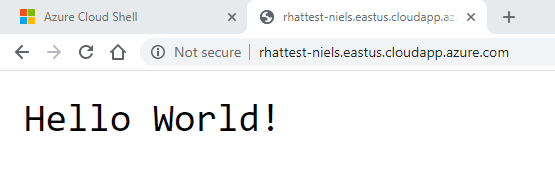
<p><img src="/media/ltqfhmoc/hello-world-redhat.png" alt="Hello World! message coming from the webserver in the browser" width="555" height="173"></p>


## Summary {#summary}

We now have a public facing ASP.NET Core application served by the built-in Kestrel web server by taking the following steps:


-   deploy ASP.NET Core to RHEL under /srv/AspNetSite
-   configure systemd to run the application as a service
-   add systemd .NET Core integration to the application
-   configure the application to listen to all IP's and different ports using environment variables
-   update the built-in firewall to allow TCP traffic over 5000, 5001, 80, and 443
-   grant 'CAP\_NET\_BIND\_SERVICE' capability to the service to allow the application to bind to well known ports such as 80 & 443
